
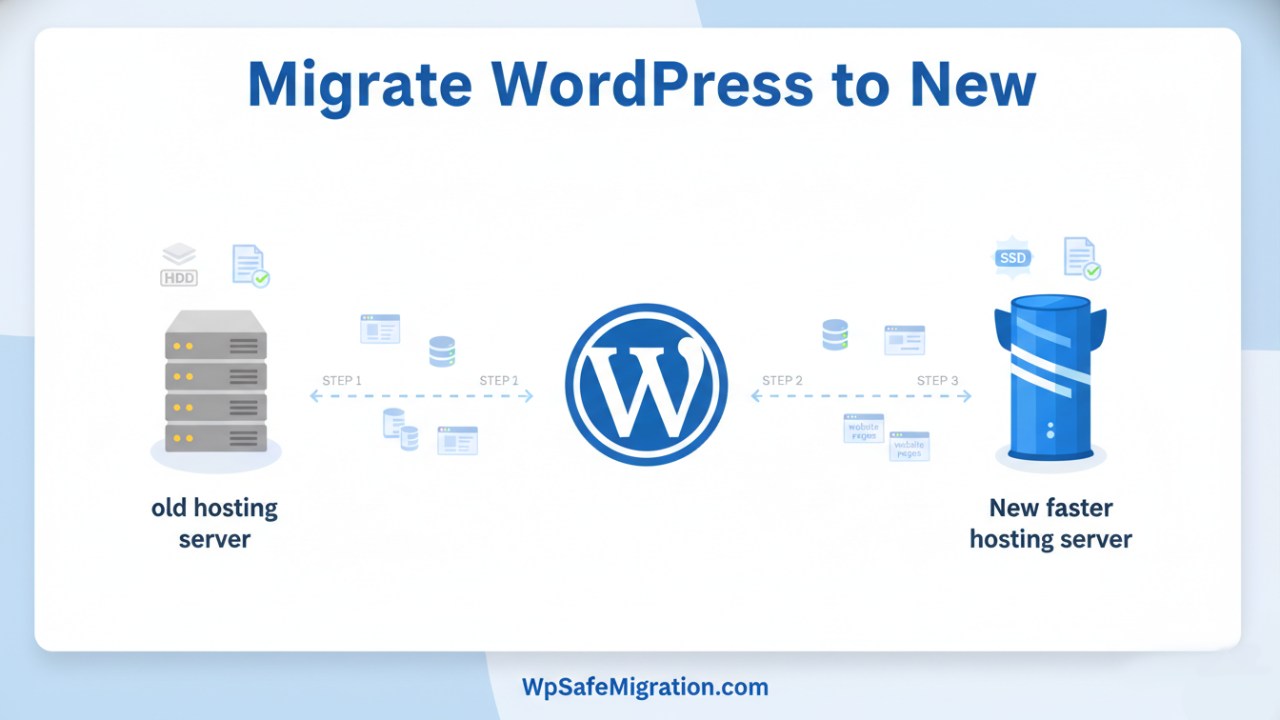
Moving a website may sound scary at first, but it is not as hard as it seems. If you want to migrate WordPress to new hosting, you simply move your website files and database from your current hosting company to another one. Many website owners do this to get faster speed, better support, or lower hosting costs. When done correctly, your visitors will not even notice that the move happened.
Think of it like moving to a new house. You pack your belongings, move them to the new place, and then continue living normally. Website migration works in a very similar way.
In this guide, you will learn how to migrate your WordPress site safely. The steps are simple and easy to follow, even if you have never done it before.
What Does “Migrate WordPress to New Hosting” Mean?
WordPress migration means moving your entire website from one hosting provider to another. Everything that makes your website work needs to be transferred to the new server.
These parts include:
- Your WordPress files
- The website database
- Themes and plugins
- Images and media files
- Website settings
Once these elements are moved, your website will work exactly the same on the new hosting account.
Many beginners think migration will break their website, but that usually happens only when steps are skipped. If you follow a clear process and create backups first, the move is very safe.
Why You May Need to Migrate WordPress to New Hosting
There are many reasons website owners decide to move their sites. Sometimes the current hosting simply cannot keep up with the needs of the website.
Below are some of the most common reasons.
Slow Website Performance
Speed matters a lot for visitors and search engines. If your website loads slowly, people may leave before the page even opens.
Many website owners move to a new host to get faster servers and better performance.
Poor Customer Support
Good hosting companies help when something goes wrong. If your host takes days to reply or cannot fix problems quickly, it becomes frustrating.
Migrating to a provider with reliable support can save a lot of time and stress.
High Hosting Costs
Some hosting companies raise their prices after the first year. When that happens, many website owners start looking for better and more affordable options.
Moving your site lets you choose a hosting plan that fits your budget.
Security Problems
If your hosting server has weak security, your site could be at risk. Hackers often target poorly protected servers.
Switching to a host with stronger security can protect your website and your visitors.
Growing Website Needs
As your website grows, it may need more storage, better speed, or higher bandwidth.
Upgrading to a stronger hosting plan ensures your site continues to run smoothly.
Things to Do Before Migrating WordPress to New Hosting
Preparation is the most important part of website migration. A few simple steps can prevent many problems later.
Before you begin the migration process, make sure you complete the following tasks.
Backup Your WordPress Website
Always create a full backup of your website before moving anything.
A backup includes:
- Website files
- WordPress database
- Images and media files
- Themes and plugins
If something unexpected happens during migration, you can restore your site using this backup.
Many plugins can help you create a backup easily.
Choose Your New Hosting Provider
Your new hosting should be reliable, fast, and secure. Look for hosting that offers:
- Good uptime
- Strong customer support
- Easy WordPress installation
- Enough storage and bandwidth
Choosing the right host makes a big difference in your website’s performance.
Disable Cache and Security Plugins
Some plugins may interfere with migration. Cache plugins and firewall plugins sometimes block file transfers or create errors.
Temporarily disabling them before starting the migration helps avoid problems.
You can enable them again after the move is complete.
Collect Important Login Information
During migration, you will need access to several accounts.
Make sure you have:
- WordPress admin login
- FTP access
- Hosting control panel (cPanel or similar)
- Database access
Keeping these details ready will make the process smoother.
3 Easy Methods to Migrate WordPress to New Hosting
There is more than one way to move a WordPress website. Some methods are simple and beginner-friendly, while others give you more control.
Below are the three most common ways.
Method 1: Using a WordPress Migration Plugin (Easiest)
This is the simplest method for beginners. Migration plugins can copy your entire website and move it to the new host.
Most plugins handle the technical steps automatically.
Popular migration plugins include:
- Duplicator
- All-in-One WP Migration
- Migrate Guru
With these tools, you only need to create a backup package and upload it to the new hosting account.
Method 2: Manual WordPress Migration
This method involves moving files and the database yourself.
You will use tools such as:
- FTP software
- phpMyAdmin
- Hosting control panel
Manual migration gives you full control, but it requires a bit more attention.
Method 3: Hosting Provider Migration Service
Many hosting companies offer free website migration services.
In this case, their technical team moves the website for you. This is helpful if you are not comfortable handling the process yourself.
However, not all hosting companies provide this service, so it is good to check before purchasing a plan.
Method 1: Migrate WordPress to New Hosting Using a Plugin (Step-by-Step)
Using a plugin is the easiest way to move your website. The plugin collects your website files and database into one package and then installs it on the new host.
Here is how the process usually works.
Step 1: Install a Migration Plugin
Log in to your WordPress dashboard and install a migration plugin such as Duplicator or All-in-One WP Migration.
After activation, the plugin will appear in your WordPress menu.
Step 2: Create a Full Website Package
The plugin will scan your website and prepare a backup package.
This package usually includes:
- WordPress files
- Database
- Themes and plugins
- Media files
Once the package is created, download it to your computer.
Step 3: Upload Files to the New Hosting
Next, log in to your new hosting account.
Upload the migration package to the server using the file manager or FTP.
This step transfers your website data to the new hosting environment.
Step 4: Run the Migration Installer
After uploading the files, open the installer in your browser.
The installer will guide you through the setup process and connect your website to the new database.
Most migration plugins make this step very simple.
Step 5: Test Your Website
Once the installation is complete, visit your website to make sure everything works correctly.
Check:
- Pages
- Images
- Plugins
- Contact forms
Testing helps ensure your site works properly before pointing the domain to the new hosting.
Method 2: Manually Migrate a WordPress Site to New Hosting
Some website owners prefer the manual method because it gives them full control over every step. The process is not complicated, but you need to move both the website files and the database carefully.
Follow these steps one by one.
Step 1: Download Your WordPress Files
First, connect to your current hosting server using an FTP tool or the File Manager in your hosting control panel.
Locate the folder where your WordPress site is installed. In many cases, it is inside the public_html folder.
Download all the files to your computer. These files include:
- WordPress core files
- Themes
- Plugins
- Images and media uploads
Make sure the download finishes completely before moving to the next step.
Step 2: Export the WordPress Database
Your website content is stored in a database. This includes your posts, pages, comments, and settings.
To export the database:
- Log in to your hosting control panel
- Open phpMyAdmin
- Select your WordPress database
- Click the Export button
- Download the SQL file to your computer
This file is very important because it contains the main data of your website.
Step 3: Create a New Database on the New Hosting
Now log in to your new hosting account.
Inside the control panel:
- Open MySQL Databases
- Create a new database
- Create a database user
- Assign the user to the database
Write down the following details because you will need them later:
- Database name
- Database username
- Database password
Step 4: Upload WordPress Files to the New Server
Next, upload the WordPress files you downloaded earlier to your new hosting account.
You can upload them using:
- FTP software
- File Manager in cPanel
Upload the files into the public_html folder or the main website directory.
Depending on your internet speed, this step may take some time.
Step 5: Import the Database
Now you need to place the database file into the new database.
To do this:
- Open phpMyAdmin in the new hosting account
- Select the new database you created
- Click Import
- Upload the SQL file you downloaded earlier
After the import finishes, your website data will be available on the new server.
Step 6: Update the wp-config.php File
Your website needs to connect to the new database.
Open the wp-config.php file in the root WordPress folder and update these details:
- Database name
- Database username
- Database password
- Database host
Save the file after making these changes.
Your WordPress site is now connected to the new hosting database.
If you want a deeper step-by-step guide for this process, you can also read this detailed tutorial:
https://wpsafemigration.com/migrate-wordpress-to-another-server
Update Domain DNS to Point to the New Hosting
After the website files and database are ready on the new hosting, the final step is to connect your domain to the new server.
This is done by updating the DNS nameservers.
Here is how it works:
- Log in to your domain registrar account
- Find the DNS or nameserver settings
- Replace the old nameservers with the new hosting nameservers
- Save the changes
Once you update the nameservers, the domain will start pointing to the new hosting.
However, DNS changes do not happen instantly. The process called DNS propagation can take a few hours and sometimes up to 48 hours.
During this time, some visitors may see the old server while others see the new one. This is normal and temporary.
Important Things to Check After Migration
Once the migration is complete, you should review the website carefully to make sure everything works correctly.
A few quick checks can prevent future problems.
Test Website Pages
Open several pages on your site and confirm that they load properly.
Check:
- Homepage
- Blog posts
- Important landing pages
Make sure there are no missing sections or layout issues.
Check Images and Media Files
Sometimes images do not appear after migration if the file paths change.
Scroll through your posts and confirm that all images load correctly.
Test Contact Forms
If your website has contact forms, try sending a test message.
This helps confirm that the email system works properly on the new hosting server.
Review Plugin Functionality
Plugins control many important features on WordPress sites.
Check your main plugins and make sure they still function normally.
Migrate WordPress to New Hosting Without Hurting SEO
Many website owners worry that migration may affect their search rankings. In most cases, SEO stays safe if the move is done carefully.
Here are a few important things to check.
Keep the Same URL Structure
Do not change your website permalinks during migration.
If URLs stay the same, search engines will not see the move as a major change.
Submit Your Sitemap Again
After migration, it is a good idea to resubmit your sitemap in Google Search Console.
This helps search engines crawl the website quickly on the new server.
Monitor Search Console
Check Google Search Console for errors such as:
- Broken links
- Crawl errors
- Missing pages
Fixing these issues early helps protect your rankings.
If you are planning a bigger move like changing the domain as well, this guide may also help:
https://wpsafemigration.com/migrate-wordpress-website-to-new-domain
Common WordPress Migration Problems and Fixes
Sometimes small issues appear after migration. Most of them are easy to fix.
Database Connection Error
This error usually means the database details inside wp-config.php are incorrect.
Double-check the database name, username, and password.
Broken Images
Broken images often happen when file paths are not updated correctly.
You can fix this by running a search and replace tool inside WordPress.
White Screen Problem
If your site shows a blank white page, it may be caused by a plugin conflict.
Try disabling plugins temporarily to find the one causing the issue.
Mixed Content Warning
If your website uses SSL, make sure all links use https instead of http.
Updating links will remove security warnings.
Best WordPress Migration Plugins
Migration plugins make the process much easier, especially for beginners.
Some of the most popular options include:
Duplicator
A powerful plugin that creates a full website package and installer.
All-in-One WP Migration
Very beginner-friendly and simple to use.
Migrate Guru
Great for large websites because it handles big transfers smoothly.
These tools automate many steps and reduce the chances of mistakes.
Frequently Asked Questions
How long does WordPress migration take?
For small websites, migration may take less than an hour. Larger websites with many images or files may take several hours.
Will migration affect my website visitors?
If done correctly, visitors usually will not notice the move. Temporary changes may occur during DNS propagation.
Can I migrate WordPress to new hosting for free?
Yes. Many plugins allow free migration. Some hosting providers also offer free migration services.
Do I need technical skills to migrate WordPress?
Basic knowledge of WordPress and hosting is helpful, but beginners can also migrate a site using plugins.
Conclusion
Moving a website to a new host may sound difficult, but the process becomes simple when you follow the right steps. Whether you use a plugin, perform the transfer manually, or ask your hosting provider for help, the goal is the same — safely move your files and database to the new server.
When you migrate WordPress to new hosting, always remember to create backups, test the website after migration, and check your SEO settings. These small steps keep your website safe and running smoothly.
If you take your time and follow the process carefully, your website will continue working just as it did before — only on a faster and better hosting environment.
Frequently Asked Questions (FAQ)
How do I migrate WordPress to new hosting without losing data?
To avoid losing data, always create a full backup of your website before starting the migration. This backup should include your website files, database, themes, plugins, and media files. If anything goes wrong during the move, you can restore your website from the backup.
Is it difficult to migrate a WordPress website to a new hosting provider?
No, it is not very difficult. Many website owners use migration plugins that move the site automatically. If you prefer more control, you can also migrate the site manually by transferring files and the database.
How long does it take to migrate WordPress to new hosting?
For small websites, the migration may take around 30 minutes to one hour. Larger websites with many images or files may take a few hours depending on the internet speed and server performance.
Will migrating WordPress affect my SEO rankings?
Normally, migration does not affect SEO if your domain name and website URLs remain the same. After migration, it is good to check your sitemap, monitor Google Search Console, and test your pages to ensure everything works properly.
Do hosting companies help migrate WordPress websites?
Yes, many hosting providers offer free WordPress migration services. Their support team can move your website to the new hosting server for you.
Can I migrate WordPress to new hosting without a plugin?
Yes, you can migrate your website manually. This involves downloading your website files, exporting the database, uploading them to the new server, and updating the database settings in the WordPress configuration file.
What should I check after migrating my WordPress site?
After migration, check your website pages, images, forms, and plugins. Also confirm that your domain DNS settings point to the new hosting server.