
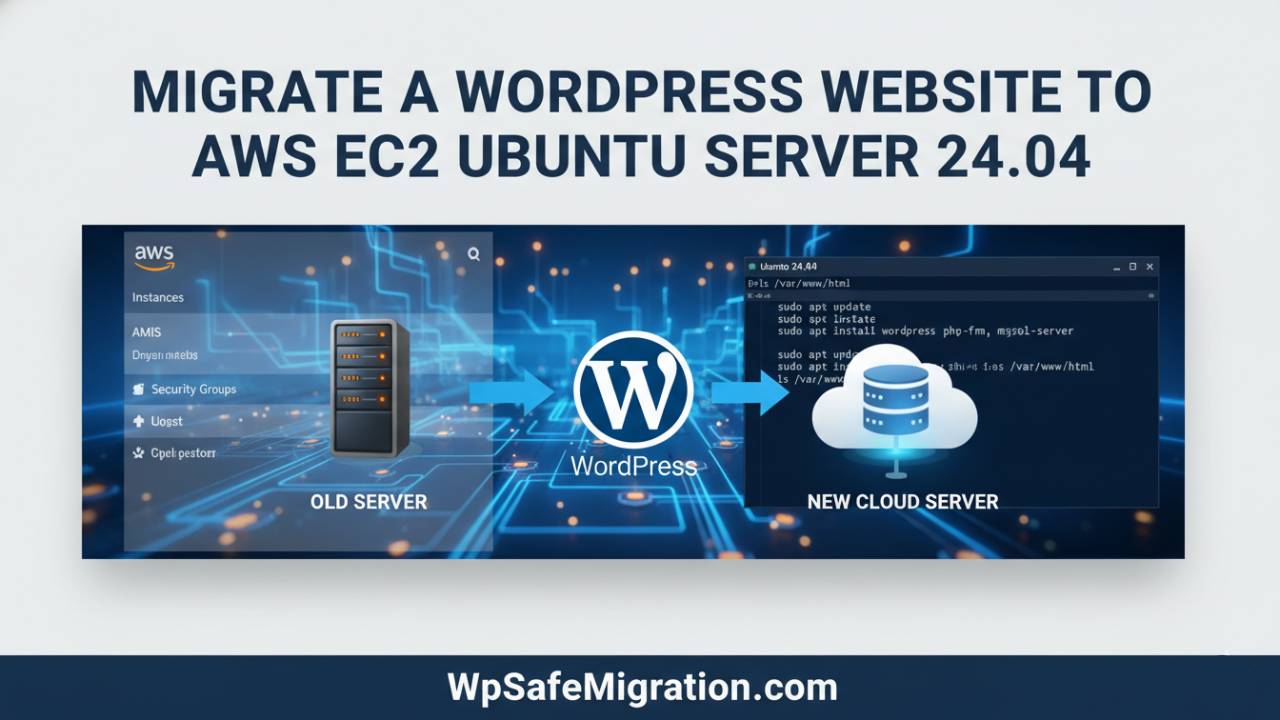
Imagine your WordPress site as a house. Right now it is on one piece of land (your old hosting), and you want to move it to a new land, the AWS EC2 server running Ubuntu 24.04. This new place can make your site faster, more reliable, and easier to grow as you get more visitors. Many people choose this path because AWS gives you the freedom to do more with your website and manage it exactly how you like.
In this guide, we will keep things simple and easy to follow, even if you are new to cloud servers.
What You Need Before You Start
Before you begin moving your website, it’s important to prepare a few things:
-
An AWS account – This is where your new server will live.
-
SSH key pair – A secure key that lets you connect to your server safely.
-
A backup of your current WordPress site – This includes both the files and the database.
-
Access to your domain settings – So you can point your website name to the new server later.
Having these ready will make the whole move go much smoother. Think of this as packing your bags before a big journey.
What AWS EC2 and Ubuntu 24.04 Mean
Before we launch anything, let’s understand the two big pieces we’ll be working with:
-
AWS EC2: This is like a blank computer on the internet. You can use it to run your WordPress site. You choose how strong it is, how much memory it has, and how it behaves.
-
Ubuntu 24.04: This is the operating system we will use on that server. It’s free and reliable, and many people use it for websites because it works well with WordPress.
Using EC2 and Ubuntu together gives you freedom and control. You manage everything — from how your files are stored to how your site handles visitors.
Launching Your AWS EC2 Ubuntu 24.04 Instance
Now comes the exciting part — starting your new server!
-
Sign in to your AWS account and go to the EC2 dashboard.
-
Click Launch Instance and pick Ubuntu Server 24.04 LTS as your machine image. This tells AWS what type of computer you want to use.
-
Choose an instance type. For beginners or small sites, choosing the smallest option that is free-tier eligible is a good idea.
-
Allow the server to assign a public IP address so it can be reached on the internet.
-
Create or choose a key pair. You will use this key to safely connect to your server later.
-
Add rules so your server can receive web traffic (on ports 80 for regular web traffic and 443 for secure HTTPS traffic).
Once everything is set up, launch your server. You should now see a new EC2 instance with a public IP waiting for your next steps.
Connecting to Your EC2 Server via SSH
Your next task is to connect to the server so you can control it.
You do this using a tool called SSH (Secure Shell). This connection lets you type commands directly into your new server, almost like sitting in front of it.
Here’s what you do:
-
Open your terminal (if you’re on Mac or Linux) or an SSH client (like PuTTY on Windows).
-
Use this command, but change it with your own key and server IP:
-
The key file you created earlier must have the right permissions so the server will let you in.
Once connected, you’ll see a command prompt that shows you’re inside your Ubuntu server. From here, you are ready to install WordPress!
Next Up in the Guide
In the second half, we will cover how to set up your server with all the tools WordPress needs, how to copy your old files and database to the new server, and how to make sure your site opens for everyone once the move is complete.
If you want to prepare for the next steps, you can check out how to install a web server, database, and PHP on your new Ubuntu machine. For more details on that setup process, see this guide on setting up WordPress on AWS EC2.
Uploading and Migrating Your WordPress Files
Once your server is ready with a web server, database, and PHP, the next step is to bring your old WordPress website to the new home.
Think of this like moving all your boxes from one house to another. Your WordPress site has two big boxes:
-
Website files — these are all the things you see on the site like pictures, themes, and plugins.
-
Database — this is where all your written content, settings, user info, and post data live.
To move the files, you can use a secure file transfer tool. One common choice is SCP or tools like FileZilla if you prefer a visual program on your computer. You upload everything from your old hosting into the server’s web folder (often /var/www/html on Ubuntu). After moving the files, it’s important to make sure the server owns them so WordPress can run smoothly.
Migrating the WordPress Database
Your database is like the brain of your website — it remembers everything. To bring it to your new AWS server:
-
Export the database from your old hosting. This usually creates a file ending with
.sql. -
Transfer that file to your EC2 server, again using SCP or a similar tool.
-
Import it into your new MySQL database on AWS.
After the import, you must connect WordPress to this database. To do that, open the wp-config.php file in your WordPress folder and update the database name, user name, and password to the new ones you created on your server. This tells WordPress exactly where to find its data.
Web Server Configuration
Your server now has your files and data. But you must tell the web software how to serve your WordPress site correctly. This differs based on the server software you chose:
-
If you use Apache, you create a virtual host file that points to your WordPress folder. You also enable the rewrite rules so links on your site look clean and work properly.
-
If you use Nginx, you create a server block that tells it where your site is and how to send PHP files to be processed.
When these are set up, you restart the web server to make the changes live. At this point, your site should begin to load when someone visits your server’s IP address. If you set up a domain name earlier, it may already show the content.
DNS and Launching
Once everything is copied and configured, it’s time to make your site publicly reach everyone using your domain name.
Your domain name system (DNS) settings must point to your AWS server’s IP address. If you used an Elastic IP on AWS (a static public IP that doesn’t change), update your domain’s A record to that address. Once you do this and wait a little bit, people on the internet will start seeing your website from the new server.
This part can take a short time — anywhere from a few minutes to a few hours — before it becomes active everywhere.
Testing and Troubleshooting Common Issues
Before you celebrate, it’s smart to check everything on your site:
-
Visit different pages and see if images show up.
-
Log into your WordPress dashboard and confirm your posts are there.
-
Try submitting a form or clicking on menus.
Some things can go wrong after a move. For example, links might still point to the old server, or some plugins may not load the way they should. Sometimes there are tiny permission issues on files that keep WordPress from saving things. If you find small problems like this, you can fix them one at a time by checking your server settings.
Optional Enhancements for Performance & Security
Now that your site lives on AWS, it has room to grow. You can improve how fast your content loads by using a Content Delivery Network (CDN) like Cloudflare. This sends your images and files from servers closer to your visitors around the world.
You can also add security protections such as automatic backups and firewalls so your site stays safe. These changes are not required to make the site work, but they help it perform even better over time.
If you are following along with this site and want to make your new WordPress setup even stronger, you might already have guides from earlier posts like how to optimize your WordPress speed or secure your login pages. (For example, refer back to your internal link on how to improve WordPress performance if you have one.)
Conclusion
Migrating a WordPress website to an AWS EC2 Ubuntu 24.04 server may seem like a long journey, but each step is just a small piece of the bigger move.
First, you prepared your server. Then you moved your site’s files and data. After that, you connected your domain and made sure everything worked well.
By following these clear steps, your site now runs on a strong, flexible server that gives you control and room to grow. Once everything is working and tested, you can continue customizing your site exactly the way you want.
Frequently Asked Questions (FAQ)
1. Is it hard to migrate a WordPress website to AWS EC2 Ubuntu 24.04?
At first, it may look difficult because AWS gives you many options. But if you follow each step carefully, the process becomes manageable. You don’t need to be an expert. Basic understanding of WordPress and simple server actions is enough to complete the migration successfully.
2. Do I need coding skills to migrate WordPress to AWS EC2?
No advanced coding skills are required. You only need to copy files, move a database, and edit one configuration file. If you can follow instructions and copy-paste commands carefully, you can do it.
3. Will my website go down during the migration?
Your old website stays live while you prepare the new server. Downtime only happens if you change the domain too early. If you update DNS after testing the new site fully, visitors will not notice any problem.
4. Can I migrate WordPress to AWS EC2 without a plugin?
Yes. This guide uses a manual migration method, which does not depend on plugins. Manual migration gives you more control and avoids plugin limits, especially for large websites.
If you prefer plugins, you can also read our guide on
👉 How to move a WordPress site to another server on WpSafeMigration.com
5. Why should I choose Ubuntu 24.04 for WordPress on AWS?
Ubuntu 24.04 is stable, fast, and supported for a long time. It works well with WordPress and receives regular security updates. This makes it a safe choice for running a website on AWS EC2.
6. What is an Elastic IP, and do I really need it?
An Elastic IP is a fixed IP address from AWS. Normal EC2 IPs can change if the server restarts. Using an Elastic IP ensures your domain always points to the same server, which is important for a live website.
7. My site works on the IP but not on the domain. Why?
This usually happens when:
-
DNS records are not updated correctly
-
DNS changes are still spreading (this can take time)
-
The server configuration is missing the domain name
Double-check your DNS settings and wait a little. Most of the time, the issue fixes itself.
8. Is AWS EC2 free for WordPress hosting?
AWS offers a free tier for small servers, but it is limited. After the free period or if your site grows, AWS will charge based on usage. Still, many people find AWS cost-effective compared to shared hosting.
9. Can I migrate a large WordPress website to AWS EC2?
Yes. Large websites can be migrated, but they need more care. File size, database size, and server resources matter more. For large or business sites, it’s safer to follow a detailed checklist or get professional help.
You can also check our related guide on
👉 Move WordPress blog to a new domain on WpSafeMigration.com