
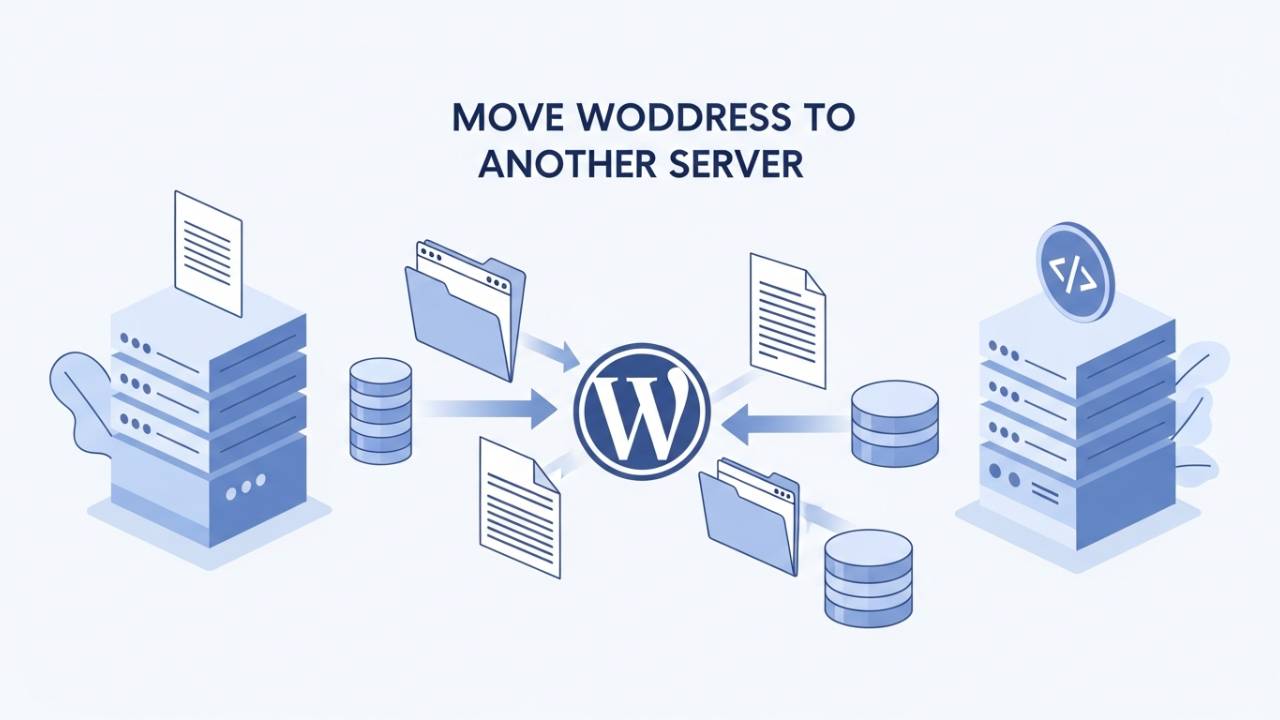
When you run a website on WordPress, sometimes you need to change the place where your website lives on the internet. This could be because your old hosting is slow, expensive, or doesn’t have enough space for your files. Moving WordPress to a different server means taking your whole website – all pages, pictures, and settings – and putting it somewhere new. This guide will help you understand how to move WordPress to another server in simple steps that anyone can follow.
What It Means to Move WordPress to Another Server
Moving a WordPress site means transferring everything from one hosting company or server to another one. If you keep the same website name (domain), visitors won’t notice much change once the move is done. But behind the scenes, all your website files and your site’s database have to be copied and reconnected on the new server before your website works again.
The WordPress system stores your website in two main parts:
-
Files – This includes themes, pictures, plugins, and WordPress program files.
-
Database – This is where your posts, comments, settings, and user information are saved.
Both parts must be taken along when moving to a new server so nothing breaks.
Preparation Before Moving WordPress
Before you begin moving your site, it’s important to be ready. If you skip this, you might lose data or have errors on your new server.
Back Up Your Website
The first thing you should do is make a complete backup of your WordPress site. A backup is like a copy of everything – all your files and your database – saved in a safe place. If something goes wrong during the move, this backup makes it easy to restore your site. There are tools called plugins that help you make backups easily, or you can copy the files and database by yourself.
Check Server Settings
Before you move, check that the new server supports the same versions of the technology WordPress needs. For example, WordPress needs certain versions of PHP and MySQL (types of software that store and show your website). If the new server doesn’t support the same versions, your site might not work correctly.
Plan a Test Run
If possible, make a test copy of your site on the new server first. This helps you see if anything goes wrong without affecting your live website. Once everything looks right, you can do the final switch. This step helps reduce mistakes and surprises later.
How to Move WordPress Manually (Step by Step)
There are two main ways to move your site: manually or using a plugin. Let’s start with the manual way, which is very reliable once you understand it.
Download Your Files
First, you need to copy all the WordPress files from your old server. These files include your themes, plugins, pictures, and WordPress program files. You can use tools like FTP (a way to connect to your server) to download all your files to your computer.
Export the Database
Then you must export your database. This is like saving a copy of all your posts, comments, and settings. You can do this using a tool like phpMyAdmin, which many hosts provide. Once the database is exported, you’ll have a file that you can upload to the new server later.
Prepare the New Server
On your new server, you will create a new database and a user that can access it. Then you upload your WordPress files into the correct folder on the server. After that, you import your old database into this new database space.
You must change one small file in your WordPress files called wp-config.php. This tells WordPress how to connect to the new database. You will open this file and replace the old database name, username, and password with the new ones you just created.
Method 2 – Using WordPress Migration Plugins
Moving a WordPress site by hand can take time, especially if you’re new to it. That’s where migration plugins come in. These are tools that help you copy your entire site – including pictures, pages, themes, and settings – and move it to a new server with just a few clicks. Plugins make the work easier and are great when you want to move WordPress to another server without fuss.
One popular plugin is All-in-One WP Migration. This tool lets you export your whole website into one file, and then import it on the new server. You install it on both the old and new site dashboards, export the site into a special file, and then upload that file to your new WordPress setup. It’s like packing all your belongings into one suitcase and unpacking it at your new home.
Another good option is Migrate Guru. This plugin works by copying your WordPress files and database and putting them into your new hosting. It supports big websites and can make the transfer faster than some other tools. All you need to do is install it and follow its simple steps to choose where you want the site moved.
There are also other plugins like Duplicator, which creates a backup package that includes everything on your site. Some tools even let you drag and drop your backup file straight into the new server. These plugins are especially helpful if you want to avoid technical steps like editing configuration files yourself.
Post-Migration Steps
After your website is moved to the new server – whether using a plugin or by hand – it’s important to check that everything is working properly. Think of this like checking all the lights and doors after moving into a new house.
One of the first things to do is test your site. Open your website in a browser and click through different pages. Make sure images show up, links take you where they should, and forms work. Sometimes small things like menu buttons or settings might not behave the same right after a transfer.
If you changed your website address (for example, from an old domain to a new one), you might see old links still pointing to the wrong place. To fix this, you can use tools that search your site for the old web address and replace it with the new one. This step makes sure visitors and search engines don’t get lost. (If you aren’t sure how to do this, plugins like search-and-replace tools can help.)
Another important step is updating your Domain Name System (DNS) records. These tell the internet that your website should now be found at your new server’s address. Keep in mind that DNS changes can take a little while – sometimes up to a couple of days – before they fully work for everyone.
SEO and Site Ranking Considerations
When you move WordPress to another server, one worry many people have is losing their website’s search ranking on Google or other search engines. But if you plan carefully, this doesn’t have to happen.
If your website name stays the same, search engines usually update to the new server without major issues. Still, it’s a good idea to send an updated sitemap to tools like Google Search Console so search engines know your website has been moved. A sitemap is like a map of all the pages on your site.
If you change your domain name during the move, you should use 301 redirects. These are simple rules that tell browsers and search engines that old pages now live at new addresses. This helps you keep your search ranking and makes sure visitors don’t run into broken pages.
Common Migration Problems & Solutions
Even when you follow all the steps carefully, some problems can happen. Don’t worry – most of these have simple fixes.
Sometimes you might see a blank page or an error message. This could mean that the files didn’t upload correctly or that the server settings don’t match what WordPress needs. Going back and checking the uploaded files usually solves this.
If images don’t show up, it might be because the image links still point to the old server. Running the search-and-replace tool again for those links usually fixes it.
Finally, remember that large websites sometimes have trouble with migration tools that limit file size. If a plugin stops partway through because the site file is too big, you might try a different migration plugin or do the manual steps instead. This happens often, and switching tools or method usually gets things moving again.
Conclusion
Moving your WordPress site to another server may sound big, but when broken down into steps, it becomes something anyone can handle. Whether you choose the manual way or use a migration plugin like All-in-One WP Migration or Migrate Guru, the key is preparation and care. After you finish, checking your site and updating things like DNS and search settings ensures your website stays fast, safe, and easy for people to find.
If you want help going even deeper – like detailed steps for a specific plugin or a checklist to follow – just let me know!
Frequently Asked Questions (FAQ)
1. What does it mean to move WordPress to another server?
Moving WordPress to another server means taking your entire website – pages, posts, images, and settings – from one hosting server and placing it on a new one. Your website may look the same to visitors, but behind the scenes it now runs from a different location. People usually do this to get better speed, lower cost, or stronger security.
2. Will my website go offline during the move?
If the move is planned carefully, your website usually stays online. Most downtime happens only if files or settings are missed. Many people reduce risk by testing the site on the new server before switching the domain. This is also explained in our guide on how to move a WordPress website safely without losing access (you can link to your related article here).
3. Do I need technical skills to move WordPress to another server?
You don’t need advanced skills. If you are comfortable using WordPress plugins, migration tools make the process simple. Manual migration needs more steps, but it is still manageable if you follow instructions carefully. Many beginners successfully move WordPress on their first try.
4. Which is better: manual migration or using a plugin?
Both methods work well. Manual migration gives you full control and works on any server. Plugins are easier and faster, especially for beginners. If your website is small or medium-sized, plugins are usually the best choice. For very large sites, manual migration is sometimes more reliable.
5. Will moving WordPress affect my Google rankings?
If done correctly, moving WordPress to another server does not harm your search rankings. Keeping the same domain name helps a lot. After the move, it’s a good idea to update your sitemap and check your site in Google Search Console. If you change the domain name, using proper redirects is very important.
6. How long does it take to move a WordPress site?
The time depends on your website size and the method you use. Small websites can be moved in under an hour. Larger sites may take several hours, especially if there are many images or files. DNS updates may take up to 24 hours to fully settle, but your site often works sooner.
7. What should I do after moving WordPress to a new server?
After the move, you should check every page, test images, and click important links. Make sure forms and menus work correctly. You should also clear caches and re-save permalink settings in WordPress. These steps help avoid hidden problems later.
8. Can I move WordPress to another server for free?
Yes. Many migration plugins offer free versions that work well for small websites. Manual migration also costs nothing if you do it yourself. Some hosting providers offer free migration as a service, which can save time if you prefer not to do it on your own.
9. Is moving WordPress to another server safe?
Yes, it is safe when you create a full backup before starting. A backup protects your site if something goes wrong. This is why backups are always the first step in any WordPress move. Our related guide on moving WordPress to a new host explains this in detail (internal link opportunity).
10. Can I move WordPress to another server without changing the domain name?
Yes, and this is the most common situation. Your domain name can stay exactly the same while the server changes in the background. Once DNS settings are updated, visitors will reach your site on the new server automatically.