
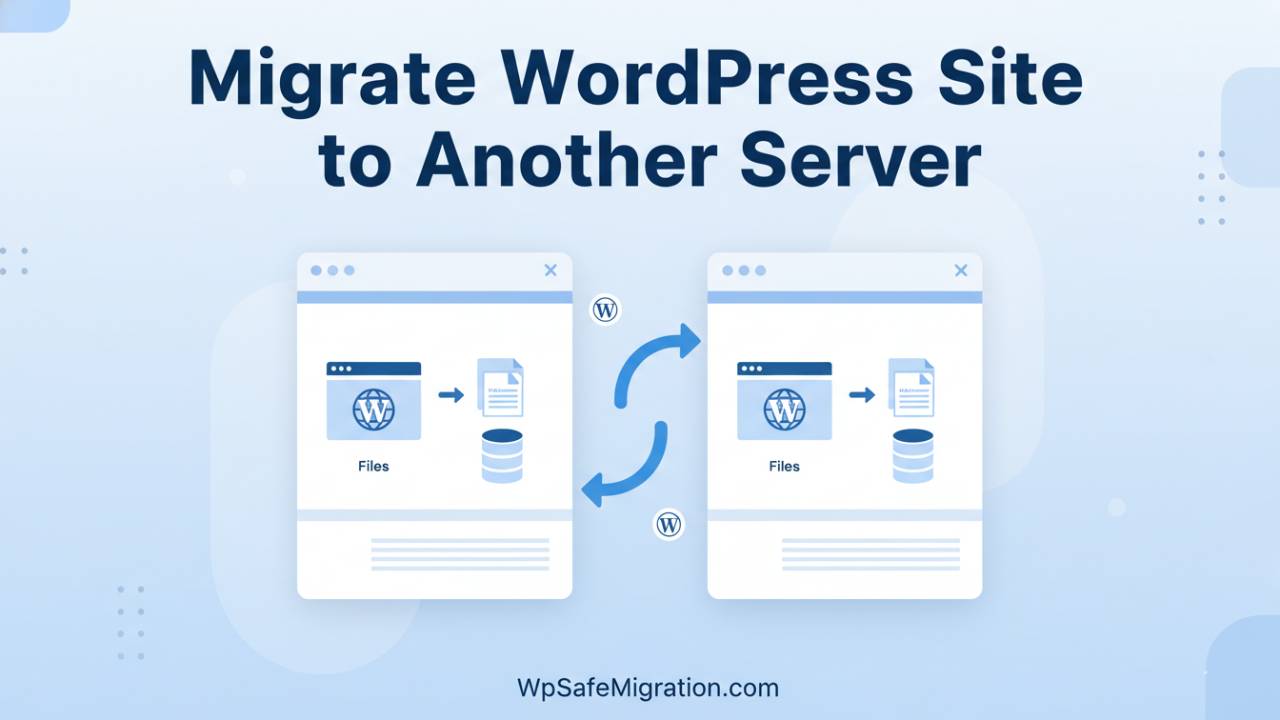
Migrate wordpress site to another server is the process of moving every part of your WordPress website – including content, images, themes, plugins, and its database – from one hosting environment to a different one so that your site stays live and works correctly on the new server. This step-by-step article begins at the very start: why people move their sites, what the basic parts of a migration are, and how to prepare before you begin. It’s written in clear, simple language so even beginners can follow along easily.
When someone decides to move a WordPress site, it’s usually because they want better performance, lower hosting costs, or more control over their site. Before starting the move, it’s important to understand that your site lives in two big pieces: the files that make up the look and structure of your site, and the database that stores all your posts, pages, users, and settings. Both parts must be moved carefully, otherwise things can break or stop working after the move.
What Is WordPress Site Migration?
WordPress site migration means safely copying your entire website from one hosting server to a different one. This doesn’t change how your site looks to visitors, but it does change where your site lives on the internet. When you move to a new server, your website might load faster, be more secure, or become easier to manage because of better hosting tools.
Think of your website like a house. Switching servers is like picking up that house and putting it on a new piece of land. All the furniture, wall color, and decorations stay exactly the same, but now the house sits somewhere new that might be stronger, safer, or have better utilities.
Checklist Before You Start
Before you begin moving your site, it’s smart to do a few important checks so things go smoothly later:
1. Backup Your Website:
Make a full copy of all your WordPress files and the database. This gives you a safety net in case something goes wrong during the move. You can use a plugin or backup tools in your hosting control panel to save these files.
2. Gather Login Details:
You will need your hosting control panel login, FTP/SFTP access, and database access for both the old server and the new one. Having these ready makes the process faster.
3. Turn Off Plugins That Might Interfere:
Some tools like caching, security, or redirect plugins can cause problems during migration. Temporarily disabling them helps prevent errors. After the move, you can turn them back on.
4. Make a Plan for Downtime:
Sometimes, the website might not be visible for a few hours while the domain name updates across the internet. Letting your visitors know in advance or planning the move during low-traffic times can help avoid confusion.
Migration Methods Overview
There are two main ways to move a WordPress site: using tools that do most of the work for you, or moving everything manually by hand.
Automatic Tools (Plugins)
Plugins are one of the easiest ways to move your WordPress site. These tools wrap up all your site files and database into a bundle that you can open on the new server. Many of the top guides recommend plugins that do this kind of work because they are simple and reduce the chance of mistakes.
Examples include:
- Plugins that package everything into a single file you can upload again at the new host.
- Tools that move your files directly from the old server to the new one without you having to download them first.
These options are great for beginners because they guide you step by step and take care of most tasks automatically.
Manual Migration
Moving the site manually means you copy your site files and export the database by hand, then set them up again on the new server. This method gives you a lot of control and is often used by advanced users or when plugins aren’t an option. You would:
- Download all your WordPress files.
- Export your database using a tool like phpMyAdmin.
- Upload files to your new hosting server.
- Create a new database there and import the old one.
- Update a small configuration file with the new database details.
This method might sound more detailed, but it works very well when done carefully.
What Happens Next
Once you have chosen your method – plugin or manual – the next part of the article will walk you through the detailed steps you’ll take on both the old and new server. This includes how to move your files and database, how to make sure everything works before visitors see the new site, and how to point your domain to your new server so that your site is live again.
If you want a ready-made list to keep by your side during the move, check out the migration checklist in the next section. You can also link this process with your existing guides about WordPress backup tips or hosting recommendations (e.g., internal link to your previous article on backups, if available) to help readers prepare completely before starting the migration.
Step-by-Step Guide: How to Migrate WordPress Site to Another Server
Now that you know the basics of moving a WordPress site and have chosen a method, let’s walk through how to migrate wordpress site to another server so everything ends up working like it did before.
The first thing to do is make sure you have both your old server and new server ready. Think of this like preparing two rooms before you move your furniture: one room where everything currently lives and a new room where everything will go. Once you are ready, start by copying all the pieces in a safe order so nothing breaks along the way.
To begin, you will make a full backup of your website – not just the parts you see, but also the hidden parts like your database that stores all your posts and settings. Many hosting panels let you download your entire site files and database. If you are using a plugin, it will help bundle these together in one easy download. Once your backup is complete, save it in a safe folder on your computer. This backup is like an emergency plan; if anything goes wrong, you can restore your site back to how it was.
Next, you will upload your site files to the new server. If you’re doing this by hand, you’ll use a tool like FTP or file manager from your hosting control panel. This step involves copying all your WordPress folders – including themes, plugins, and media – to the new space. With a plugin, this step may happen automatically when you install the migration package on the new host.
After the files are in place, it’s time to work with the database. The database holds everything you’ve written – posts, pages, comments, and even settings. You will import the saved database into a new database on your new server, and then connect it to your WordPress files. This usually means editing one small settings file so WordPress knows where to find the right database. If you are using a plugin, this connection is often handled for you.
Once the files and database are in place, don’t forget to check how your site works before telling the world about the move. Log into the WordPress dashboard on the new server and make sure pages load correctly, images appear where they should, and links aren’t broken. It’s a little like opening all the doors and windows in your new room and making sure nothing feels out of place.
Plugin-Assisted Migration: Simple Steps for Beginners
If you chose to use a migration tool, the steps are simpler. These plugins act like moving helpers who wrap your belongings and carry them straight to the new house.
A typical plugin will package your entire site into one file. You download that file and then upload it to the new server using the same tool. Once uploaded, the plugin usually asks for a few details – like where your new database should live – and then it unpacks everything for you.
This method helps avoid small mistakes that can happen during manual moves. It’s especially helpful for people who don’t want to deal with databases and file transfer tools. Just follow the plugin’s on-screen instructions step by step, and take your time making sure each step finishes before you move on to the next.
After the plugin finishes the move, visit your site on the new server to confirm that everything looks and works exactly like before.
How to Migrate Without Downtime
One common worry during a move is that visitors might see a broken site for a little while. You can avoid this by planning the switch at a quiet time – perhaps late at night or early in the morning – and by keeping things running on the old server until the new version is ready.
Before you update your domain name settings to point to the new server, take time to test your site there. Most hosts let you view your site using a temporary address before it goes live. Once everything looks great, update the domain settings and wait for the change to spread across the internet. Usually this takes a few hours, but during that time both the old and new sites can still work so people don’t see a blank page.
This kind of planning makes the move feel smooth to visitors. They may not even realize anything changed!
Troubleshooting Migration Issues
Even when you follow every step carefully, small problems can still pop up. The good news is most issues have simple fixes. If your site shows an error when loading, check the database settings to make sure they match the new server. If images or links seem broken, check that all media files were copied correctly.
Sometimes plugins behave differently on a new server. If this happens, try turning them off one at a time and checking your site after each one. This helps you find which plugin might be causing trouble.
If you run into a problem that feels bigger than a small fix, you can always restore your backup from the start and try the move again. Having a good backup – like the one made at the very beginning – makes you feel safe no matter what happens.
Post-Migration Checklist
After everything is moved and working, take a little time to make sure your site is fully ready:
- Update your permalinks so links work correctly.
- Test all forms and buttons to make sure they send messages properly.
- Check SEO settings so search engines still find your pages.
- Take a fresh backup now that your site is settled in its new home.
These small steps help you finish the move with confidence and keep your visitors happy.
Conclusion
Moving your website might seem big at first, but by breaking it into clear steps and working carefully, you can migrate wordpress site to another server without stress. Whether you use a plugin or move things by hand, the key is to prepare well, check your work as you go, and always keep a safe backup.
If you would like tips on how to choose a good hosting provider after the move, check out my article on best hosting for WordPress to make sure your site stays fast and secure for years to come.