
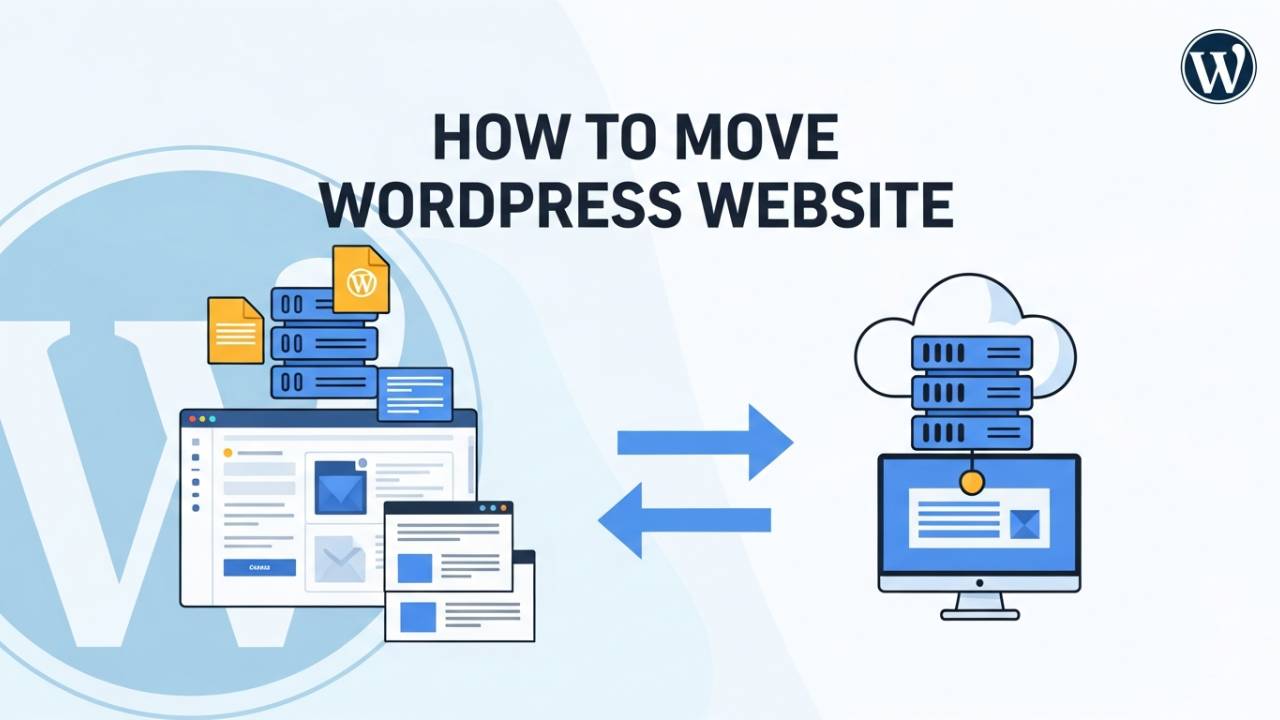
Moving a WordPress website means taking your whole site – the pages, pictures, posts, and everything else – from one place to another. People do this when they want a better web host, a new domain name, or a different server that loads faster. Done right, the site should look the same after the move, and people clicking your link won’t notice much difference. In this article, you will learn each step clearly so you can handle the move with confidence.
What Does “Moving a WordPress Website” Mean?
When you hear “moving a WordPress website,” think of packing up all the pieces of your site and unpacking them somewhere new. Your site lives in two main places:
-
Files – things like images, plugins, themes, and WordPress system files, and
-
Database – the place where all your posts, settings, and page content are stored.
When you move a site, you must take both parts with you so that the website still works in the new place.
Sometimes the domain stays the same, and only the host changes. Other times both the host and the domain change. Either way, the idea is to copy everything safely and make sure links still work.
Pre-Move Checklist: Things to Do Before You Start
Before starting the move, take time to prepare. Rushing can cause missing pictures, broken pages, or lost content.
1. Make a Full Backup First
First, make a full backup of your website. This means saving a copy of all your website files and the database to your computer or a safe location. Backups are like a safety net – if anything goes wrong, you can use the backup to restore your site.
You can use special backup tools or the file area in your hosting control panel to download everything. Don’t skip this part – it keeps your work safe.
2. Know What You Have Now
Next, check your current setup. Look at where your site is hosted, your domain name, and whether everything is up to date. You should check things like WordPress version, theme version, and plugins. This helps make sure the move goes smoothly and that nothing breaks when the site is live in the new location.
Also, make sure you have access to your hosting panel, FTP, and phpMyAdmin (the tool used to access your database). You will need these during the move.
Method 1: Moving WordPress Using a Plugin (Easy Way)
One simple way to move a WordPress website is by using a plugin. A plugin is like a helper tool built for WordPress that can do big tasks with just a few clicks.
Step-by-Step Plugin Option
A popular tool for this is All-in-One WP Migration. With this plugin, you can export your whole site into a single file, then import it into the new WordPress site. This method keeps everything together — files, posts, pages, themes, plugins, and the database.
-
Log into your old WordPress dashboard and go to Plugins → Add New.
-
Search for the migration plugin, install it, and activate it.
-
Use the plugin to export your entire site into a backup file.
-
On your new site, install the same plugin and import that file.
-
Wait for it to finish, then check that all parts of your site show up correctly.
This method is great for beginners because it avoids technical steps like editing files or databases manually.
Method 2: Manual WordPress Migration (Step-by-Step)
If you want more control or are moving to a very different setup, you might move the site manually. This means you physically copy the files and the database by yourself.
1. Download Website Files
Use an FTP program or the file section in your hosting panel to download every file from your current WordPress folder. This includes your themes, plugins, uploads, and all WordPress system files.
2. Export the Database
Now go into phpMyAdmin in your hosting panel and find your WordPress database. Click Export, and save the database file to your computer. This file holds all your posts, pages, settings, and more.
After these two parts are saved, you can take them to the new host and upload them in the next steps.
Moving WordPress to a New Domain
When you change your domain name (the website address people type), you are not just moving files — you are changing the address too. Imagine telling all your friends you moved house; you also have to give them the new address.
After you have uploaded your files and database to the new host (as described above), you must update WordPress so it knows the new domain.
In your WordPress settings or database, you will find two important pieces of information: site URL and home URL. These tell WordPress where it lives. If these still point to the old address, your website might keep sending people to the old site or show broken pages.
You can update these in WordPress Settings → General, or by using a search-and-replace tool that goes through the database and changes the old address to the new one. Do it carefully — this step makes sure all your pages, pictures, and links point to the correct place now.
SEO Best Practices During Migration
When you move a WordPress website, search engines like Google must know what has changed so they don’t treat your site as completely new. If they think your site disappeared and reappeared, your search rankings could drop.
To avoid this, set up 301 redirects. A 301 redirect is like telling a mail carrier that your old address has moved permanently to the new address. When someone (or a search engine) tries to visit the old page, they are sent to the same page on the new domain. This helps preserve the hard-earned search traffic and keeps users from landing on error pages.
After the move, go to your Search Console or sitemap settings and submit your updated sitemap. A sitemap is like a map of your site that helps search engines explore all your pages. Submitting it again tells Google and others that the new domain is your real home now.
Also check for crawl errors. When search engines look at your site, they record if they find broken links or missing pages. Fixing these after the move keeps both search engines and your visitors happy.
For more on setting up your site and balancing SEO while you move, see our earlier section on pre-move preparation and how backlinks and settings matter for visibility. You can link to earlier internal tutorials here like “pre-move WordPress checklist” or “WordPress SEO basics”.
Post-Migration Testing & Optimization
Once everything is copied and updated, don’t leave it at that – test your site carefully.
Walk through several pages. Click on pictures and links. Try a few forms or buttons. If something looks wrong, you can often fix it before the world notices.
Go to Settings → Permalinks and click “Save Changes.” This refreshes the way WordPress builds URLs, which can fix missing pages after a move.
Now check how fast your site loads. A slow site can frustrate visitors. If needed, add a caching tool or image optimizer to speed things up. If you ran security or performance plugins before the move, simply reactivate them on the new site.
Then keep an eye on analytics and search rankings over the next few weeks. This tells you if traffic is steady or if any pages have dropped in visibility. If you notice strange drops, the issue is usually with missing redirects or sitemap entries that need fixing.
Common Issues and Troubleshooting
Even when you follow every step carefully, a few bumps may still come up. Here are the most common:
-
Permalinks don’t work: If your pages return errors, go to Settings → Permalinks and save the settings again. This tells WordPress to refresh its link rules.
-
Missing images or files: Sometimes uploads don’t copy correctly. Re-upload missing files through FTP or your hosting control panel.
-
Plugins act funny: Some plugins may not like the new environment. Try deactivating them and reactivating one by one to find the troublemaker.
-
Database errors: If WordPress can’t connect to the database, double-check your wp-config.php file for the correct database name, username, and password. These must match the new host’s settings.
-
DNS propagation delays: After changing servers or domains, the internet may take a few hours to recognize the new location. During this time, some people may still see the old site. This is normal and usually clears on its own.
Conclusion
Moving a WordPress website can seem big at first, but when you break it into small steps it becomes manageable:
-
Prepare and back up.
-
Copy files and database.
-
Update site URLs if the domain changed.
-
Tell search engines about your new setup with redirects and sitemaps.
-
Test everything.
-
Fix small issues if they come up.
If you follow the simple steps above and take your time, your WordPress site will make its new home smoothly. Many site owners move their websites every year to improve performance, make room for growth, or simply to work with a different host – and you can too.
Frequently Asked Questions (FAQ)
Can I move a WordPress website without losing my content?
Yes. When you move a WordPress website correctly, all your posts, pages, images, and settings stay safe. The key is to move both the website files and the database together. Making a full backup before starting also protects your content if anything goes wrong.
Will moving my WordPress website affect SEO?
It can, but only if steps are skipped. If you set proper redirects, update your sitemap, and fix broken links, your search rankings usually stay stable. Many websites move hosts or domains without losing traffic by following a careful migration process. This guide explains those steps clearly so search engines understand the change.
What is the easiest way to move a WordPress website?
Using a migration plugin is the easiest method for beginners. Plugins bundle your whole site into one file and help you restore it on the new host. This avoids technical work and reduces the chance of mistakes.
How long does it take to move a WordPress website?
A simple site can be moved in under an hour. Larger sites with many images or pages may take a few hours. If you change your domain name, it may take up to 24 hours for the internet to fully recognize the new address.
Do I need technical skills to move a WordPress website?
Not necessarily. If you use a plugin, basic WordPress knowledge is enough. Manual migration requires more attention, but even that can be done step by step if you follow clear instructions like the ones in this article.
What should I do if my site shows errors after moving?
Most errors are small and easy to fix. Saving permalink settings, re-uploading missing files, or re-activating plugins often solves the problem. The troubleshooting section above covers the most common issues and how to handle them calmly.
Should I keep my old hosting active after moving the site?
Yes, for a short time. Keeping the old hosting active helps you test the new site properly and set redirects. Once everything works and traffic points to the new site, you can safely cancel the old hosting plan.
Can I move my WordPress website to a new domain name?
Yes. You can change both the host and the domain at the same time. Just make sure you update all old links to the new domain and use redirects so visitors and search engines reach the correct pages.
Is it better to move WordPress at night or during low traffic hours?
Yes. Moving your site when fewer people are visiting reduces the chance of users seeing errors. Many site owners choose late night or early morning hours for a smooth transition.