
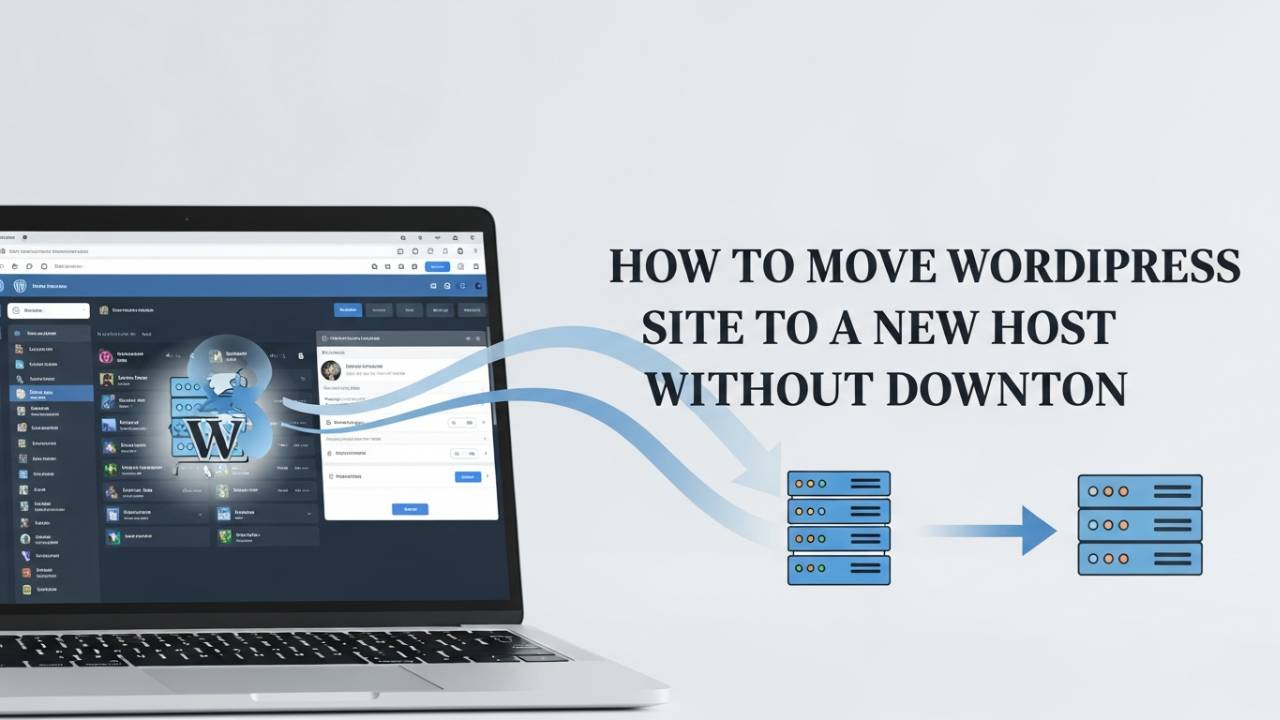
Moving a WordPress website from one place to another means taking all your pages, pictures, and settings from your old host and making them work on a new host. A host is like the home where your site “lives” on the internet. Sometimes people want a new host because the old one is slow, too expensive, or not reliable. When you move correctly, your site keeps working and people can still visit it without trouble. This guide will walk you through the process in a way that is easy to follow and safe.
Why You Might Want to Move Your WordPress Site
There are several good reasons to move your WordPress site to a new host. Your current host might be slow, causing pages to take a long time to load. Or maybe support is not helpful when you have questions. A new host could give better speed, stronger security, or better help when you need it. Choosing a better host can make your site faster and easier for visitors to use.
Planning Your WordPress Site Migration
Before you start moving anything, it’s important to make a plan. Think about when you want to do the move and let people know your site might be quiet for a little while. The first thing you must always do is create a full backup of your site — that means saving every file and all the content in your database so nothing gets lost. This is like making a copy of all your schoolwork before you move it to a new folder. Always keep this copy safe before you begin.
Step-by-Step Migration Guide
Backup Your WordPress Site
The first real step is to back up everything on your website. WordPress stores your pictures, posts, and settings in two places: the site files and the database. You can use a special tool or do it by hand, but the aim is the same — have a complete copy stored somewhere safe on your computer. This backup protects you if something goes wrong.
One helpful way to make a backup is by using a migration plugin inside WordPress. Plugins like All-in-One WP Migration or Duplicator help you package up your entire website into a single file that can be moved later. These tools gather all the files and database information together so you don’t have to do every little piece yourself.
Choose Your Migration Method
There are two main ways to move your site:
With a plugin or manually.
Using a Plugin:
Many people choose a plugin because it makes the work easier. A plugin guides you step by step inside your WordPress dashboard to export your site into one file and then import it into the new host. This is like packing up everything into a suitcase, moving it, and unpacking it on the new host.
Moving Manually:
If you like doing things by hand, you can download all your site files with a tool like FTP and export your database using phpMyAdmin. Then you upload those files and the database to your new host. This takes a few more steps but gives you full control over the move.
Both methods work well when done with care. If you are just starting out, a plugin might feel simpler because it takes care of many tasks for you.
Using a Plugin to Export Your Site
If you choose a plugin, start by installing it on your old site. After it’s ready, you will use it to make an export file. This file contains all your pages, pictures, themes, and settings in one place. Once the plugin finishes creating the export, you download that file to your computer. Think of it as making a boxed copy of your entire website.
Importing to the New Host
Now that you have your backup file, it’s time to go to your new host. On this new host, you first install a fresh WordPress site. Then install the same plugin you used before. In the plugin menu you will find an option to import your file. Choose the backup you saved and let the plugin unpack everything on the new host. Once it finishes, your site content will be on the new host just like it was before.
Update Your DNS and Go Live
After you finish copying all your files and database to the new host, the next big step is telling the internet where your website now lives. This is done by updating your DNS settings. DNS acts like an internet address book. It tells browsers where to find your website when someone types your domain name in the address bar.
To do this, log into the service where you bought your domain name (like GoDaddy or Namecheap). Find the place where DNS records are listed and replace the old host’s details with the new host’s details. Once you save these changes, computers all over the world start to notice your site is moving. This process is called DNS propagation, and it can take anywhere from a few minutes to a couple of days before every visitor sees the new host. During this time, some visitors might still reach the old site while others see the new one — this is normal.
Test Your Site After the Migration
Once DNS changes start to spread, it’s important to check if your site is working exactly as it should. Wander through your website like a visitor would. Open the home page and some inner pages. Look at pictures, test buttons and links, fill out forms, and make sure nothing shows a blank page or a broken symbol.
You should also log into your WordPress dashboard and make sure everything looks right there too. Check plugins and themes to ensure they are still active and functioning. If you see any pages that act strange or can’t be found, notify your new host or fix the issue — this helps keep your visitors happy and prevents big problems down the road.
SEO Considerations After Moving Your Site
When your website moves to a new host, search engines like Google need to understand that nothing has really disappeared — it’s just living in a new place. If you accidentally change page links or URLs during the move, search engines might think pages are gone and this can lower your site in search results.
If your web addresses stay the same, search engines won’t get confused. But if you change them, you must set up 301 redirects. These are little signals that tell search engines and people’s browsers that the old address now leads to a new address. This keeps the “search love” that your pages already earned.
It’s also a good idea to create or update your XML sitemap — a file that lists all your pages — and send it to Google through Google Search Console. This helps Google re-find and check your new site faster.
Troubleshooting Common Issues After Migration
Even when you follow all steps carefully, a few problems might pop up after the move. Here are some of the most common ones and what they mean:
-
Old Pages Still Showing: This usually happens because DNS hasn’t fully spread yet. Waiting a little longer often fixes it. You can also clear your browser cache so your computer doesn’t keep showing the old version.
-
Broken Links or Missing Pictures: Sometimes links or pictures still point to the old location. Running a quick search-and-replace inside the database or using a link checker tool can fix this.
-
Login Problems: If you can’t log into the admin area, double-check your site address settings in WordPress under Settings > General. Make sure the site address matches the new domain setup.
If these issues happen, don’t panic. Take them one at a time, test often, and reach out to your host’s support team for help when needed.
Wrapping Up and Final Tips
Once your site is fully live and loaded at the new host, and DNS changes have finished spreading, you’re almost done. Leave the old hosting active for another day or two just in case someone still reaches it during propagation. When everything is smooth and all pages work, then you can cancel the old hosting plan.
Before closing out, check your site’s speed and performance too. A new host often improves loading times, making visitors happier and search engines more interested in showing your pages in results.
Frequently Asked Questions (FAQ)
Can I move a WordPress site to a new host without losing data?
Yes, you can move your WordPress site without losing any data if you create a full backup before starting. A proper backup saves all your pages, images, posts, and settings. If something goes wrong during the move, this backup helps you restore everything safely.
Will my website go offline during the migration?
In most cases, visitors won’t notice anything if the move is done carefully. Your old site usually stays active while the new site is being prepared. When you update DNS settings, some people may see the old site and others the new one for a short time, but the site usually stays online.
How long does it take to move a WordPress site to a new host?
The actual moving process often takes one to two hours. However, DNS changes can take up to 24–48 hours to fully spread across the internet. During this time, everything normally keeps working, just from different locations.
Is using a migration plugin safe?
Yes, trusted migration plugins are safe and widely used. They help move your site in a simple way by packing everything into one file. For beginners, plugins are often easier than doing everything manually.
Do I need technical skills to move my WordPress site?
Basic WordPress knowledge is enough if you use a plugin. You don’t need coding skills. If you choose the manual method, you’ll need to be more careful, but many hosting guides explain each step clearly.
Will moving my site affect SEO rankings?
If your domain name and page links stay the same, SEO is usually not affected. Problems happen only when links change or pages break. Testing your site and fixing errors quickly helps protect your search rankings.
Should I delete my old hosting account right away?
No, it’s better to wait at least one or two days after the move. This allows DNS changes to finish and gives you time to confirm everything works correctly on the new host before canceling the old plan.
What should I check after moving my WordPress site?
After the move, check all pages, images, menus, and forms. Log into the WordPress dashboard, refresh permalinks, and make sure plugins are active. This helps catch small issues early.