
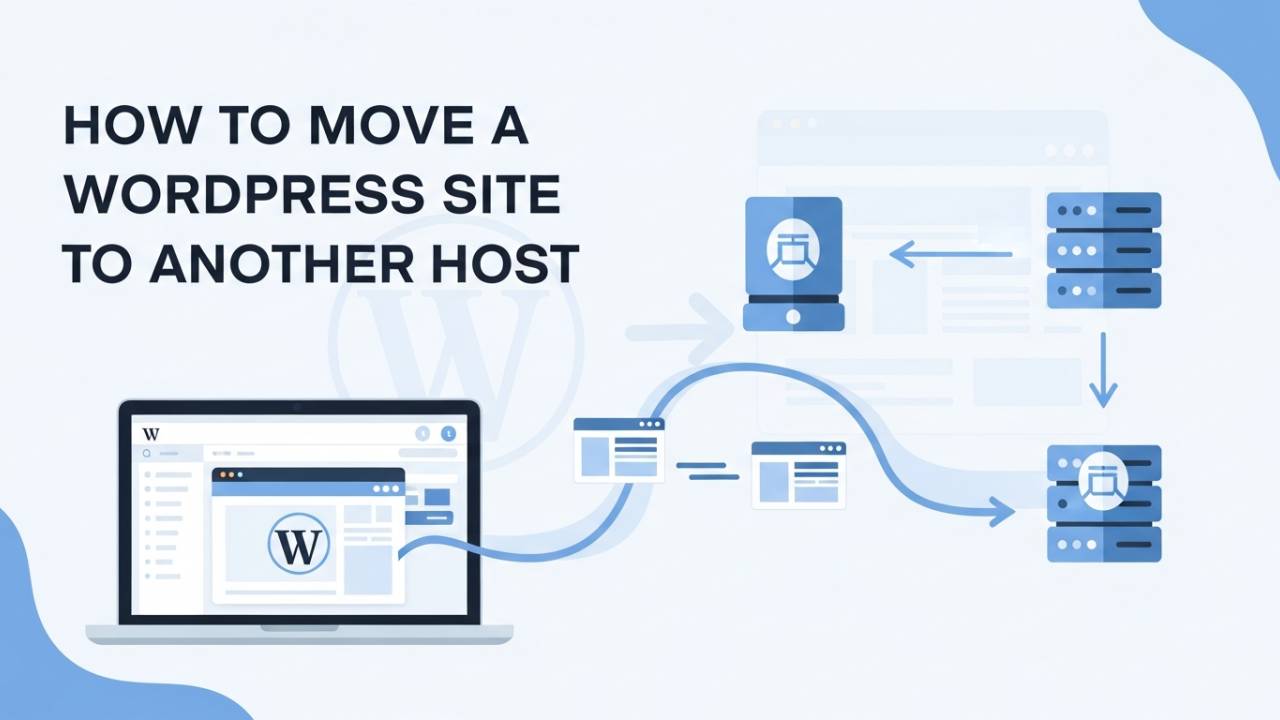
Moving a WordPress site from one host to another means taking all the pieces of your website — the pictures, posts, and settings — and putting them on a new web server. People do this when they want faster loading speeds, better support, or more room for growth. This move can seem scary at first, but if you follow the steps carefully, you can do it without losing anything important.
What You Need to Know Before You Start
Before you begin, it helps to understand a few important things. First, backing up your site is the most important step. A backup keeps a safe copy of all your website files and your site’s database so nothing gets lost. You can create this backup using tools in your hosting panel or plugins inside WordPress.
There are two main ways to move a WordPress site: using a migration plugin or doing it manually. Plugins make the process easier, especially if you are not comfortable with technical steps. The manual way gives you more control and can be better if you want to learn more about how WordPress works behind the scenes.
How to Move Your WordPress Site Using a Plugin
Using a plugin is like having a helper that moves your site for you. One popular tool many website owners use is All-in-One WP Migration, which helps you export and import your full site. The process works like this:
First, install the plugin on your old WordPress site and let it export your site files and database into one downloadable package. This file includes everything — your posts, pictures, designs, and settings. After export is done, download that file to your computer.
Next, set up a fresh WordPress install on your new host. Once that is ready, install the same plugin again there. Now use the plugin to import the file you downloaded earlier. This tells WordPress to rebuild your old site on the new host using the files inside that single package.
This plugin way is often faster and less confusing for beginners because you do not need to touch hosting panels or databases one by one. Many hosts also offer their own similar migrator tools that work in much the same way.
Moving Your WordPress Site the Manual Way
If you want to do everything yourself without a plugin, you can follow a more hands-on method. This involves a few simple but careful steps.
The first step is to save your database. Your WordPress database holds all your text, page settings, user accounts, and more. You can access it using a tool called phpMyAdmin inside your hosting dashboard. Choose your site’s database and click “Export.” Save this file to your computer.
After that, you need to download your site files. These files include your themes, plugins, and every image you have uploaded. You can do this by connecting to your old host with an FTP program or using a file manager in your hosting control panel. Once all files are saved, you will upload them to your new host later.
Then on your new host, you create a fresh database and import the one you exported earlier using phpMyAdmin. You will also upload your site files to the right folder on the new host. Finally, you open the wp-config.php file and type in the new database name, username, and password so WordPress can talk to your database.
These steps sound long, but each part is just simple copying and pasting if you take your time.
Update Your Domain and Go Live
Once your site is fully copied to the new host, the last big step is to make sure people see the new version when they visit your website address. This is done by updating your DNS settings at your domain registrar so your domain name points to the new hosting service.
DNS changes can take a few hours to spread around the internet, so sometimes your site might show the old version for a short while before the new one appears. That is normal and nothing to worry about.
Post-Migration Checklist: What to Do After Your Site Is Live
Once your WordPress site has moved to the new host and the domain is pointing correctly, there are several important checks to make sure everything is working well.
First, walk through your website page by page and look for anything that seems off. Click on your menus, buttons, and links to make sure they open the correct pages. Look at your pictures and videos to ensure they are showing up correctly, and test any forms like contact forms or signup boxes. If you sold things on your site before, try placing a test order to confirm everything still works.
Next, you may need to fix links or pages that don’t show up anymore. Sometimes links that worked before the move might point back to the old address. If you’ve changed the domain name or moved to a different folder, tools like search-and-replace plugins can help fix old URLs inside your site’s content. Another helpful step is refreshing your WordPress URL settings by going to your Dashboard → Settings → Permalinks and simply saving the settings again. This makes sure WordPress re-builds its internal links the right way.
It’s also a good idea to clear your site’s cache. WordPress and many hosts use caching to make websites load faster, but old cached content can hide changes you’ve made or show old pages instead of the updated site. Clearing the cache from your dashboard or hosting panel makes sure visitors always see the newest version.
Troubleshooting: Fixing Common Migration Problems
Sometimes things don’t go perfectly the first time. If a page shows an error or something looks broken, don’t panic — most issues have simple solutions.
One common problem is when links don’t work. This can happen if your site still thinks it lives on the old host. In that case, check site URLs in your Settings → General section and make sure the web address is correct. You can also use a search-and-replace tool inside WordPress to fix any leftover old addresses inside your site’s text.
Another issue can be with images not showing. This usually means some picture files didn’t move correctly. You can re-upload missing images or check your wp-content/uploads folder to make sure all your media files are there. If something still looks wrong, visit those pages in an incognito browser window to rule out browser caching problems.
Broken pages may also happen if your permalink settings didn’t update correctly. If site visitors see a “404 Page Not Found” error when they click a link, a quick way to fix it is to go to Settings → Permalinks and click Save Changes without altering anything. WordPress will rebuild the correct path for every page.
Keeping SEO and Performance Intact After Migration
After a WordPress site move, your search engine ranking and page speed are important. Making sure these stay strong helps people find and enjoy your website.
If you moved your domain name, setting up 301 redirects from old pages to the new ones helps search engines know where your content went. This keeps your search ranking strong and stops visitors from hitting broken pages. You can set up redirects using a plugin or through your hosting control panel.
You should also make sure your site still loads quickly. Sometimes, moving to a new host changes things like caching or content delivery networks (CDNs), which can speed up your website. Tools like Google PageSpeed Insights help you see how fast your pages load and suggest ways to make them faster.
Once everything looks good, take another full backup of your site in its new home. This backup will be your safety net in case anything goes wrong later. Set up a regular backup schedule so your website always has a recent restore point.
When to Keep or Cancel Your Old Hosting
Even if your new host is working perfectly, it’s wise to keep your old hosting active for at least a couple of days after the migration. That way, if something doesn’t appear correctly on the new host, you can still access the old files and data without trouble.
Once you’re confident your new host serves the site well and everything has loaded globally, you can cancel the old plan to avoid extra charges. Before canceling, double-check that emails, databases, and any other services tied to your old host have been moved or updated so nothing breaks.
Conclusion
Bringing your WordPress site to a new home doesn’t have to be confusing. By following a careful plan — backing up first, testing your new site, checking links and images, and watching for small problems — you can make your move smoothly and confidently. If you stumbled a bit during the process, the post-migration checks and fixes above help you get everything back on track. With your site running well on the new host, visitors will enjoy a faster, more reliable experience.
Frequently Asked Questions (FAQ)
1. Will I lose my website data when moving to another host?
No, you won’t lose anything if you move your site the right way. Before starting, always create a full backup of your WordPress site. This backup keeps a safe copy of your pages, images, and settings. If something goes wrong, you can restore your site using that backup.
2. Can I move a WordPress site without any downtime?
Yes, it is possible. The key is to finish setting up your site on the new host before changing the domain settings. Visitors will continue seeing the old site until the switch is complete. Once everything is ready, updating the domain makes the new site live smoothly.
3. Which is better: using a plugin or moving the site manually?
Both methods work well. Plugins are easier and faster, especially for beginners. Manual migration takes more time but gives you full control over every step. If you are new to WordPress, using a plugin is usually the safer choice.
4. How long does it take to move a WordPress site to another host?
Most WordPress migrations take a few hours. Larger sites with many images or posts may take longer. Domain changes can take up to 24–48 hours to fully update across the internet, but your site usually works during this time.
5. Do I need technical skills to move my WordPress site?
Not necessarily. If you use a migration plugin, you don’t need deep technical knowledge. The manual method needs a bit more attention, but as long as you follow the steps carefully, it’s manageable even for beginners.
6. Should I cancel my old hosting right after migration?
No, it’s better to wait. Keep your old hosting active for at least a couple of days. This gives you time to test the new site and fix any small issues. Once everything works perfectly, you can safely cancel the old plan.
7. Will moving my WordPress site affect SEO?
If done properly, your SEO will stay safe. Make sure your pages, links, and content remain the same. If you change domain names, use redirects so search engines know where your pages moved. This helps keep your rankings stable.
8. What should I check after moving my WordPress site?
After migration, check your pages, images, menus, and contact forms. Test links and make sure your site loads properly. Clearing cache and saving permalink settings again can fix many small issues.
9. Is it safe to move an eCommerce WordPress site?
Yes, but it needs extra care. Test payments, carts, and checkout pages before going fully live. If your store is large, you may want professional help to avoid mistakes.
10. Where can I find a detailed guide for WordPress migration?
You can follow a complete step-by-step guide here:
👉 https://wpsafemigration.com/move-wordpress-site-to-another-host/
This guide explains the process clearly and helps avoid common mistakes.