
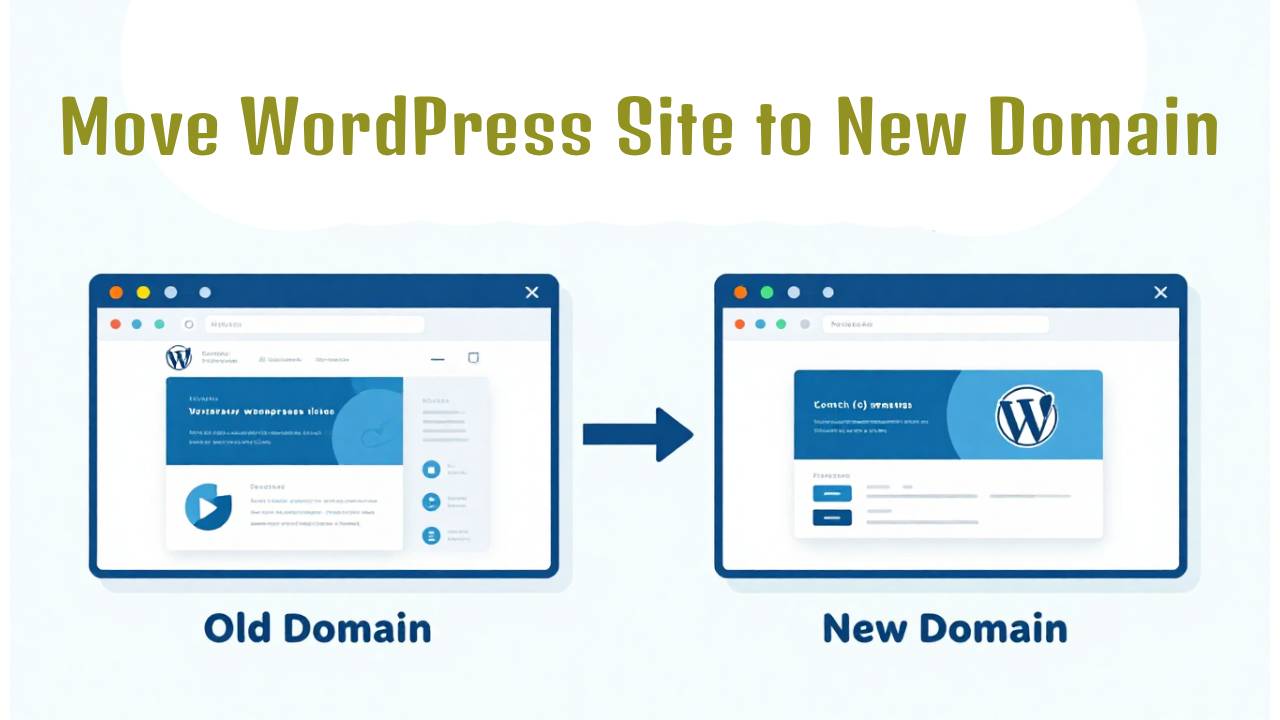
Changing your WordPress website to a new domain might sound confusing, but it can be done step by step without too much trouble. Whether you picked a new name for your brand, found a better domain, or just want a fresh start, moving your site means shifting everything — your pages, pictures, links, and settings — to live under a new web address. In this guide, you’ll learn how to do it right so your visitors can still find you and your site keeps running smoothly.
Why You Might Need to Move WordPress to a New Domain
There can be many reasons to move your WordPress website to a new domain. Maybe your old domain had a name that no longer fit your business or it wasn’t easy to remember. Sometimes people change domains to make their site name match their brand better, or to take advantage of a domain that ranks better in search engines. Other times, a new domain is part of a bigger redesign of your site. Whatever the reason, understanding why you want to make the change will help you plan the move more carefully.
Before You Begin: Planning and Backups
Before you start moving anything, the first and most important thing is to make a backup of your site. A backup is like a snapshot of your website — all your files and database saved in a safe place. If something goes wrong during the move, a backup lets you go back and try again without losing anything. You can download your website files and export your WordPress database using tools your web host provides or plugins inside WordPress. Always save at least two copies in different locations, like your computer and a cloud drive.
Once you’ve backed up your site, check that you have access to your new domain name and hosting account. You should be able to log into the control panel where you can upload files and manage the database. Having all this ready before you begin makes everything smoother and less stressful.
Step-by-Step Migration Process
Prepare the New Domain & Hosting
The first working step is setting up your new domain. If you haven’t already bought it, register the domain name you want and link it to your hosting plan. This usually takes a few minutes but can sometimes take hours before it becomes active on the internet.
If your host offers an easy migration tool, you can use it to make this process faster. Some hosts have one-click tools that copy everything from the old site to the new domain automatically. If not, don’t worry — you can do it manually and still get great results.
Export WordPress Files & Database
Once your new domain is ready, you need to move your website files and your database.
-
Files: Your WordPress site lives in a folder on your server. These include themes, plugins, images, and WordPress system files. You can download everything using FTP software or a file manager in your hosting dashboard.
-
Database: This holds all your content — posts, pages, settings, and user info. You’ll export this from a tool called phpMyAdmin or a similar database tool. Save it as an
.sqlfile on your computer.
These two parts together — files + database — are what make up your complete website. Having both backed up and downloaded is the key first step in moving your site.
Upload Files & Import Database on New Domain
After downloading your files and database from the old domain, it’s time to put them on the new one.
Start by uploading all the website files into the folder for your new domain. If your hosting uses a public_html or www folder, that’s where the files go. Next, create a new database on the new hosting account and import the database file you exported earlier. This fills the new database with all your old site’s content.
Once the database is imported, you may need to edit a small file called wp-config.php. This file tells WordPress how to connect to its database. You’ll replace the old database name and login information with the new ones you just created.
Taking these steps carefully makes sure all your old content appears correctly on the new domain before you move on to the next part of the process.
Updating URLs After Migration
After the database and files are in place, your WordPress site might still think its name is the old domain. To fix this, you will update site URLs inside the site settings. This means changing the old domain name to the new one so that links, images, and pages load from the right place.
This can be done from the WordPress dashboard if you can access it — just go to Settings > General and change the WordPress Address and Site Address to your new domain. If you cannot log in yet, you can change these values directly in the database using phpMyAdmin.
Set Up 301 Redirects (SEO Preservation)
Once your site is live on the new domain, you want everyone — people and search engines alike — to find your new home. The old domain still has links and bookmarks out in the world, so you want to gently guide visitors from the old domain to the new one without breaking anything.
This is done with something called a 301 redirect. Think of a 301 redirect as a sign on the old door that says, “We’ve moved! Go this way.” When someone visits an old address, they are sent straight to the same page on your new domain. This helps keep your old search traffic and tells search engines that the move is permanent — not temporary. It’s one of the strongest ways to keep the good things your site earned, like search ranking and traffic.
To set this up, you can use special tools or plugins that do this for you. If your host lets you edit server files, you can add a simple rule so that every request for the old site goes to a matching page on the new site. For example, if someone tries to visit olddomain.com/about, they will now be taken to newdomain.com/about. This keeps both people and search engines happy.
Tell Google About the Domain Change
Just moving your site isn’t enough — you also need to tell Google that you made a big change. Google keeps a list of all the sites it knows about and how to find them. When you move to a new domain, Google needs to learn that your site has a new address so it doesn’t think your old site disappeared or treat the new site as something totally different.
To do this, you use Google Search Console, which is like a dashboard Google gives you to talk directly to Google’s system. First, add both the old and new domains to Search Console and prove you own them. Then, inside the settings of the old site, there is a “Change of Address” tool. This tells Google which new domain your old site has moved to.
After that, submit a new sitemap for your new domain. A sitemap is like a list of all the pages on your site. Giving Google the sitemap makes it easier and faster for Google to crawl and index all your new pages. At the same time, it’s a good idea to keep the sitemap for the old domain for a short time, so Google can see the changes clearly.
Post-Migration SEO Checklist
After you’ve moved everything and told Google about your new site, there are a few important checks to make sure everything is working:
-
Fix broken links and images: Sometimes, links inside your pages can still point to the old domain. Use simple tools or plugins to scan your new site and update any leftover old links.
-
Update internal pages and menus: Check your menus, buttons, and any custom links to ensure they point to the new domain’s pages.
-
Submit updated sitemaps again: After fixing links and final checks, resubmit your sitemap in Search Console to give Google the freshest version.
-
Watch your site traffic and search ranking: In the weeks after your move, keep an eye on your site visits and search results. It’s normal to see some changes as Google learns your new site, but this should improve over time.
Common Migration Challenges and Simple Fixes
When moving a site, a few tricky things can happen — but don’t worry, you can fix them:
-
Traffic dips at first: When Google first learns about your new domain, it may take a few weeks for traffic to fully bounce back. This is normal. Keep working on content and patience pays off.
-
Some old pages still show up in search results: Even with redirects, Google may show old pages for a short time. This slowly changes as Google reindexes your site.
-
Broken images or missing links: These can happen if any content still points to the old domain. A quick scan and update usually fixes this.
Tools That Make Migration Easier
There are tools that can help make these steps smoother:
-
Redirect helpers that set up 301 redirects in one go.
-
Link scanners that find old domain links still hidden in the new site.
-
Search Console reports that show you what Google sees and helps fix issues before they become big problems.
Using these tools can save time and give you confidence that the move went well.
Conclusion
Moving your WordPress site to a new domain can seem like a big task, but when you break it down and follow these steps, it becomes manageable. Start with careful planning, make sure you back up everything, and follow the steps to transfer your files and database. After the move, set up redirects, tell Google about the change, and check your site to keep your rankings and visitors happy.
A smooth domain migration helps your audience find you at your new address and lets search engines know where your content lives now. With patience and good practice, your website can continue to grow with its new domain name.