
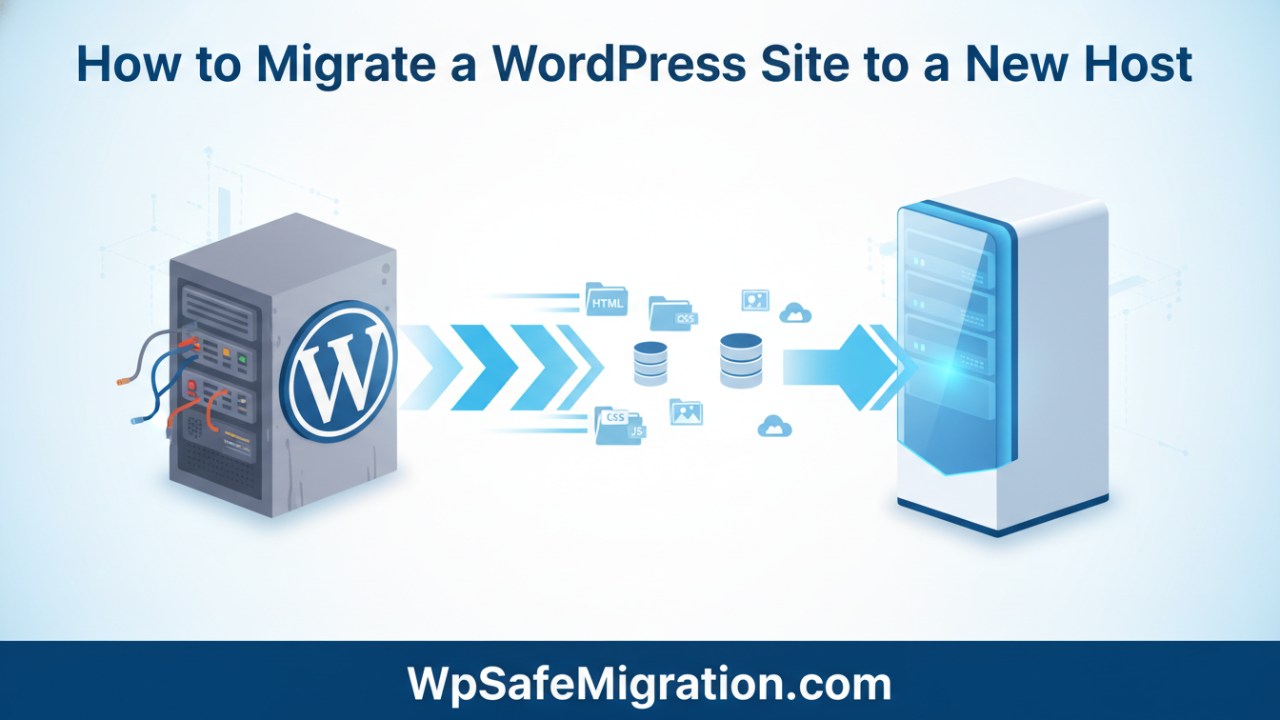
How to migrate a WordPress site to a new host is something many site owners eventually need to do, whether you’re switching to a faster server, a cheaper plan, or a more reliable provider. Moving a WordPress site might sound tricky at first, but when you understand the simple steps involved, it becomes much like packing belongings before a big move: you gather everything carefully, transport it, and then make sure it all works in the new place. Below is the first part of a clear, step-by-step guide written so anyone can follow along easily.
Why You Might Want to Move Your WordPress Site
There are many reasons to move your site. Maybe your current host is slow and visitors complain about loading time. Maybe you want better support or more space for growth. Whatever the reason, switching hosts can help your site run smoother and give you more room to expand. Just like when you change houses, you want the transition to go well so everything stays in place and nothing gets lost.
Before You Start the Migration
Before you begin the actual moving process, it’s very important to prepare. Imagine getting ready for a trip: you pack your luggage, make a list of what you need, and check the weather before leaving. For a WordPress move, you need a plan too:
First, make a full backup of your site. This means saving all your website files and the database — the part that stores your posts, pages, and settings. If something goes wrong during the move, you’ll be able to restore everything from the backup.
Next, look at what’s on your site right now. Take note of the theme you’re using, any special plugins that are important to how your site works, and any custom code or settings. Cleaning out things you don’t need before moving — like unused plugins — can make everything lighter and easier to transfer.
Backing Up Your Website Files
Your WordPress site lives in two places: your files and your database. The files include things like the WordPress program itself, your theme files, images, and plugin files. Backing these up gives you a copy of everything your visitors see and use. On many hosts you can log into the control panel and use a built-in tool to download all your site files as a zip folder. If your host doesn’t offer that, you can use an FTP program like FileZilla to connect to your account and download the files manually.
Saving Your WordPress Database
Once your files are safe, the next step is to back up your database — this is where all of your content, comments, and settings are stored. Most hosts let you access your database through a tool called phpMyAdmin. Inside that tool, you select your WordPress database and export it. Choosing the “SQL” format makes sure the data can be used again later. Putting the database file in the same folder as your other backup files keeps everything organised and easy to find.
Getting Your New Host Ready
With your backup complete, it’s time to think about where your site is going. On your new host, you’ll need to create a fresh database. Most hosting services include a simple control panel where you can create a new database and user. You’ll need to remember the name you give this database, the username, and the password. These details will be needed later when you tell your site where its database now lives.
What Comes Next
In the second half of this article you’ll learn how to bring your files and database into your new hosting space, update your site settings so everything works there, and make sure the switch is smooth for your visitors. You’ll also find easy tips for checking your links and content after the move so nothing breaks.
Importing Your Files and Database to the New Host
After your new hosting space is ready, it’s time to bring your saved WordPress files and database back into the new home. This is like emptying your packed boxes into a new house and placing everything where it belongs.
To start, open your new hosting control panel and connect using an FTP program or the built-in file manager. You simply upload your entire WordPress folder — the same one you backed up earlier — into the web space that your new host uses for your site. Usually, this is called the public_html or www folder. It might take a while if your site has many files, so be patient and let the upload finish completely.
Next, you import your database into the empty database you created earlier. Using phpMyAdmin or a similar tool your host provides, choose the new database and upload the .sql file you saved. This file carries all your website content, like posts, pages, comments, and settings. Once it finishes importing, your database is ready to talk to your WordPress files.
Finally, you need to open the wp-config.php file and update a few lines so WordPress knows the name of your new database, the username, and the password. Saving these changes tells your site how to connect to the right data when someone visits.
Point Your Domain to Your New Host
Now that your files and database are in place, you must update your domain settings. This step tells the internet that your website has moved to a new address, so visitors and search engines are sent to the correct place.
Head to the place where you manage your domain name — often the company where you bought it. There are two common ways to point your domain to your new host:
- Change the nameservers: Your new host gives you nameserver names like
ns1.newhost.comandns2.newhost.com. Simply replace your old nameservers with these. - Change DNS records: Some hosts prefer that you update the “A record” to the IP address of your new server.
Once these settings are updated, it might take some time — often up to 48 hours — before the whole internet knows about the change. This delay is called DNS propagation, and it’s normal. During this time, some people still see the old site while others see the new one.
What to Do After Migrating Your WordPress Site to a New Host
When your domain finally starts showing the new site, don’t close your old hosting right away. It’s a good idea to wait a few days while you check everything again. Sometimes visitors around the world still reach the old location for a short while after the switch, and having the old site live makes it easy to roll back if you spot a problem.
Walk through your entire site slowly. Click on menus, open pages, test contact forms, and view photos. Make sure everything looks right and works like it did before. If you find something that seems broken, fix it on the new site so visitors won’t be confused or frustrated.
At this point, it’s also smart to refresh your WordPress permalinks — those are the addresses your posts and pages use. Just go to Settings > Permalinks and click “Save.” This small step helps clean up any link problems that might have arisen during the move.
Keeping Your Website Healthy After Migration
Once your site is live on the new host, there are a few small but important things to check that help your site stay fast and easy for people and search engines to find:
- Look for broken links: If you changed the domain or moved pages around, update any links that no longer lead anywhere.
- Check your sitemap: Submit it again to tools like Google Search Console so search engines know where your pages are now.
- Keep backups: If you use backups in your old host, migrate them to your new environment so you always have a safety net.
If you already wrote about backup safety in your earlier posts, you could link readers to that trusted guide here for deeper help — for example, learn more about creating safe backups in our WordPress backup guide. (You can add your own internal link here.)
Wrapping Up the Move
By taking the time to migrate carefully, you give your visitors a smooth experience and keep your site’s content safe. Even though this might seem like many steps, thinking of it like moving to a new house — pack, move, unpack, check — makes each part feel easy and natural.
Soon you’ll know how to migrate a WordPress site to a new host so well that the next time feels even quicker. The key is to be patient, make backups, and always double-check before you finalize the move.
Frequently Asked Questions (FAQ)
1. Is it hard to migrate a WordPress site to a new host?
No, it is not hard if you follow the steps carefully. You need to back up your files, move them to the new host, import the database, and update your domain settings. If you take your time and double-check each step, the process is safe and manageable.
2. How long does it take to migrate a WordPress site?
The actual transfer can take 30 minutes to a few hours, depending on your website size. However, DNS updates may take up to 24–48 hours to fully spread across the internet. During that time, some visitors may still see the old version of your site.
3. Will I lose my SEO rankings after migration?
If you migrate carefully, your rankings should stay safe. Make sure your website structure, URLs, and content remain the same. Also, check for broken links and resubmit your sitemap in Google Search Console after the move.
4. What is the safest way to migrate a WordPress site?
The safest way is to create a full backup before doing anything. You can move your site manually or use a trusted WordPress migration plugin. No matter which method you choose, always test your website on the new host before canceling the old one.
5. Can I migrate my WordPress site without downtime?
Yes, you can reduce downtime by keeping your old hosting active until the new site is fully working. Update your DNS only after everything is ready. This way, visitors will not see a broken or missing site.
6. Do I need technical knowledge to transfer a WordPress site?
Basic knowledge helps, but you don’t need to be an expert. If you can use your hosting control panel and follow instructions step by step, you can complete the migration. Many hosting providers also offer free migration support if you need help.
7. Should I use a plugin or migrate manually?
Both methods work. Plugins are easier for beginners because they handle most steps automatically. Manual migration gives you more control but requires careful attention when handling files and the database.