
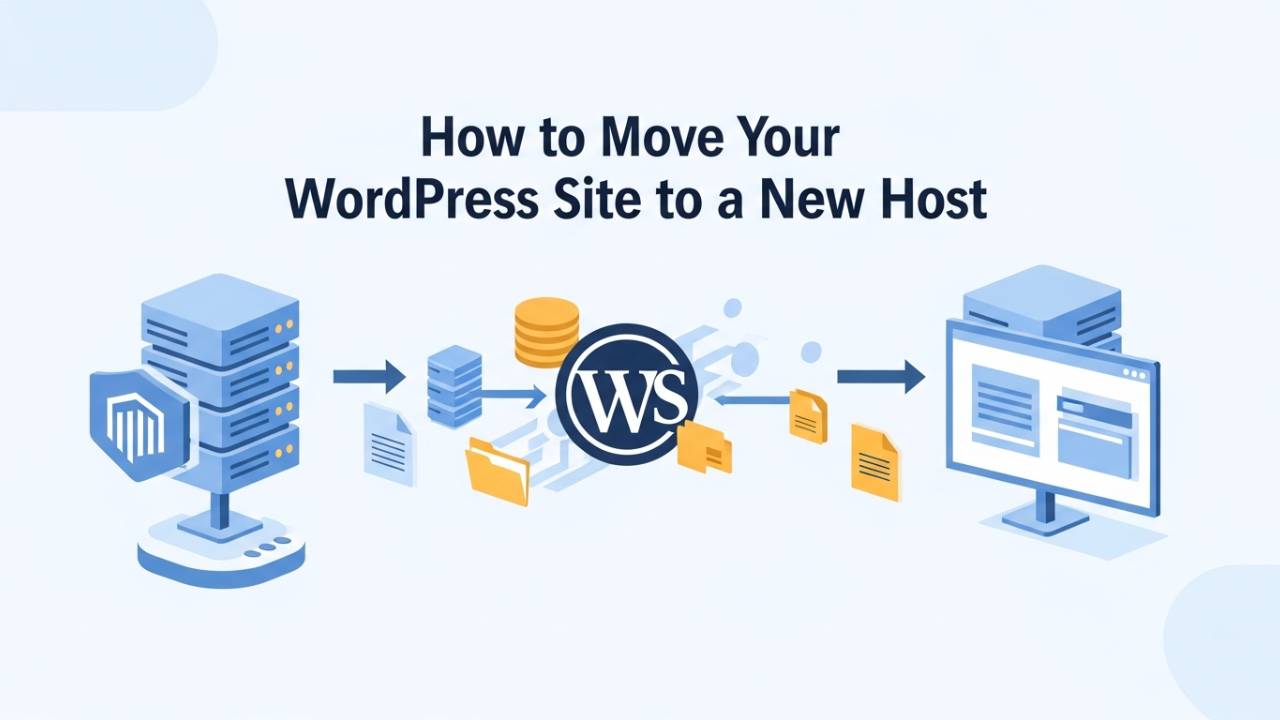
Every now and then, you might feel the need to take your WordPress website from one hosting company to another. Maybe your old host was slow, or you want better support or more room for growth. Whatever the reason, the good news is that moving your WordPress site to a new host is something you can do step by step without losing your content. By the time you finish reading this, you’ll know exactly what to do and why each step matters.
What You Should Do Before You Start
Before you begin moving your site, it’s important to gather a few things so the process goes smoothly. First, make sure you can sign in to your old hosting account and access your WordPress dashboard. You will also need access to your new hosting account where the site will live next. Most migrations involve copying two main parts: your website’s files, and its database — a special folder of information that holds all your posts, pages, settings, and user accounts. Saving both of these is like packing all your clothes and keepsakes before moving to a new house.
Backing up your site is one of the most important things you can do. Think of a backup as a safety net — if anything goes wrong while you move, you still have a copy of everything. You can make this backup using a plugin or through tools in your hosting panel. Once you have both the files and database saved, you’re ready for the next steps.
Easy Way: Using a WordPress Migration Plugin
One of the simplest ways to move your WordPress website is by using a migration plugin. Plugins are small helpers you can add to WordPress that make jobs easier. For moving your site, plugins like All-in-One WP Migration or Duplicator let you pack everything into a file, download it, and then unpack it on your new host.
To start, install the migration plugin on your old WordPress site. Once it’s active, look for the export or backup option inside the plugin’s menu. This will create a complete copy of your website, including its themes, pictures, pages, and the database. You then download that backup file to your computer.
After that, install WordPress on your new hosting account just like you would for a brand-new website. In the WordPress dashboard of your new site, add the same migration plugin. Open it and choose the option to import the backup you just downloaded. The plugin will unpack everything and set it up on the new host for you. This method is especially gentle for beginners because you don’t have to touch any hidden website folders or special tools.
Manual Way: Moving Files and Database by Hand
If you prefer not to use a plugin, you can move your site manually. This method requires a few more steps, but it gives you full control over what happens.
First, connect to your old host and download all of your WordPress files. These live in a folder usually called public_html or something similar on the server. You can download them through your hosting panel or with a program like FileZilla.
Next, you must take a copy of your database. Your database holds every page, post, and setting in your site. Most hosts let you open a tool called phpMyAdmin, where you select your database and export it to a file on your computer. Think of this as copying the brains of your site before you move it.
After you have both your files and database saved, go into your new hosting panel and make a fresh database. You will be asked to give it a name and a user with a safe password. Keep these details handy because you will need them soon. Finally, upload your WordPress files to the new server and import the database file you saved. At this point, WordPress’s configuration file must be updated so your site knows how to connect to the new database.
Pointing Your Domain to the New Host
Even after everything has been moved, your website will not show up at the new place until you tell the world where it lives. This happens by updating something called DNS records for your domain name — the address people type in the browser to find your site.
Your new host will give you nameservers or an IP address to use. You log in to the place where you registered your domain name and replace the old host details with the new ones. This process can take a few hours or sometimes up to two days before all visitors see the new version of your site.
After Migration: Checklist to Make Sure Your Site Works
After you have moved your site and changed your domain’s settings so the website points to the new host (covered earlier), there are a few important things to check to be sure everything works well.
First, open your site in a browser and walk through it like a regular visitor. Click on a few pages, look at posts, and try images and links. If something looks strange or missing, go back and check your files or database transfer.
Next, go into your WordPress dashboard and visit Settings > Permalinks and press Save. This simple step refreshes how WordPress reads links for all your pages. Sometimes this fix alone clears up issues like pages giving 404 errors after a move.
It’s also a good idea to test your forms, login areas, and any buttons that send information. If you run a shop or have sign-up forms, go through the whole process once as a visitor. This way you know the important parts of your site are ready for real people.
Making Sure Search Engines See Your New Site
Right after migrating, your site might still look fine to you, but search engines like Google need to be told that the same site now lives on a new host. This is especially important if your site’s address has changed.
To help Google find your updated site fast, you can log in to Google Search Console (if you use it) and ask it to re-crawl your site. Look up your sitemap and make sure it lists the right links. This helps search engines index your site properly on the new host. If you published articles like other guides on optimizing and structuring content (for example, internal link building tips in your other articles, such as [how to improve blog structure for SEO]), this is a good time to remind Google about them.
You can also check that your site map is correct and your robots-txt file (which tells search engines where they can and can’t go) is not blocking anything important. Staying visible in search results makes sure your visitors find you as usual.
Common Issues You Might Run Into
Even when you follow all the steps carefully, a few small problems can happen after a migration. Knowing them ahead of time makes them easier to fix.
One frequent problem is broken links. If some parts of your site still point to the old host or old paths, those links won’t work right. You can use a tool to check for broken links and fix them one at a time.
Another issue is slow loading images or missing pictures. This usually happens when the uploads folder didn’t transfer correctly. Going back and uploading that folder again fixes that kind of problem.
Because DNS changes can take time to spread across the internet, some visitors might still see the old site for a little while after you switch over. This is normal and should clear up in a day or two.
If you ever feel stuck during any of these steps, you can refer back to sections earlier in this guide or visit your host’s support center for help.
Conclusion: You’ve Successfully Moved Your WordPress Site!
Moving your WordPress site to a new host can feel like a big task, but with careful steps and patience, it becomes something you can do confidently. You started by backing up your files and database, learned two easy ways to transfer (with a plugin or by hand), pointed your domain to the new host, and checked your site after the move.
Now that your site is running on the new host, visitors will enjoy a smooth experience, and you can continue building great content. If your site starts to feel slower or has broken links after migration, don’t worry — the little tweaks in this part of the guide will help you fix them fast.
Keep learning and growing your WordPress skills. And for more helpful articles like [how to optimize WordPress speed for beginners] and [WordPress security basics every site owner should know], you can check out my other posts around here!
Frequently Asked Questions (FAQ)
1. Can I move my WordPress site to a new host without losing anything?
Yes, you can. If you take a full backup of your site before starting, your pages, posts, images, and settings will stay safe. A backup is like keeping a spare key—it protects you if something goes wrong.
2. Will my website go offline during the move?
In most cases, visitors won’t notice anything. Your old site stays online until the new one is ready. When you change the domain settings, both versions may work for a short time while the internet updates itself.
3. Does moving to a new host hurt SEO?
No, not if it’s done correctly. If your website address stays the same and all pages work properly, search engines treat it as the same site. After the move, it’s smart to check your site in Google Search Console and refresh your sitemap. You can also follow tips from your related guide on how to move a WordPress website safely on WpSafeMigration.com.
4. Which is better: using a plugin or moving the site manually?
For beginners, a plugin is usually easier and faster. Manual moving gives more control, but it takes more time and care. Both ways work well if you follow the steps properly.
5. How long does it take to move a WordPress site to a new host?
Small sites can be moved in less than an hour. Larger sites may take a few hours. The longest wait usually comes from domain changes, which can take up to 48 hours to fully update everywhere.
6. What should I check first after migration?
Start by opening your website and clicking around. Check pages, images, menus, and forms. Then log in to WordPress and save permalinks once. This small step fixes many common issues.
7. Can I move my WordPress site by myself, or do I need expert help?
Many site owners do it themselves by following a clear guide like this one. If your site is very large or important for business, getting help can reduce stress—but it’s not required.
8. Should I delete my old hosting account right away?
No. Keep your old hosting active for a few days. This gives you time to make sure everything works perfectly on the new host before closing the old account.